How to Set a Recurring Alarm on iPhone
Most alarms are not one-offs. They are the same alarm, again, on some rhythm your life already runs on. The question is whether your phone can express that rhythm.
Quick answer: Yes, but the built-in Clock app only repeats on days of the week. Pick any combination of Monday through Sunday and that is the whole feature. If your rhythm is monthly, yearly, every other week, or anything else that is not a weekday pattern, the Clock app cannot say it. Alarm Clock Planner adds daily, weekly, custom day sets, monthly, yearly, and every-N intervals, with an optional end date.
Can you set a recurring alarm on iPhone?
Yes. Open an alarm in the Clock app, tap Repeat, and you get seven checkboxes: Monday through Sunday. Tick the days you want and the alarm returns on those days, forever, until you turn it off.
For the two most common cases, a weekday wake-up and an everyday wake-up, that is genuinely all you need. The trouble starts the moment your rhythm is not measured in weekdays.
What the Clock app cannot repeat
There is no interval anywhere in the Clock app. No monthly, no yearly, no every-second-week, no every-third-day. Some real schedules it simply cannot express:
- Rent on the 1st, or a bill on the 15th.
- An injection or a medication every second week.
- An annual renewal, a birthday, an inspection due once a year.
- A shift pattern that does not line up with a seven-day week.
The usual advice is to use the Reminders app, which does support monthly and yearly repeats. The catch is that a reminder is a notification: it plays briefly at notification volume, respects the Silent switch and Focus modes, and stops on its own. Fine for an errand. Not something to trust with medication or a 4:30 start.
Every repeat option, and when to use it
In Alarm Clock Planner the Repeat menu covers the intervals the Clock app leaves out:
- Every day. The plain daily wake-up.
- Weekdays or Weekends. Two taps instead of five checkboxes.
- Weekly. Every week on the day you started from.
- Custom. Your own set of weekdays, the same thing the Clock app does.
- Monthly. The same date each month, clamped sensibly when a month is short.
- Yearly. The same month and day each year.
- Every N. Weekly, monthly, and yearly each take an interval, so every 2 weeks, every 3 months, or every 2 years are all one setting.
Weekly, monthly, and yearly repeats can also carry an end date, which matters when a medication course or a payment plan has a known finish line and you would rather not remember to delete the alarm later.
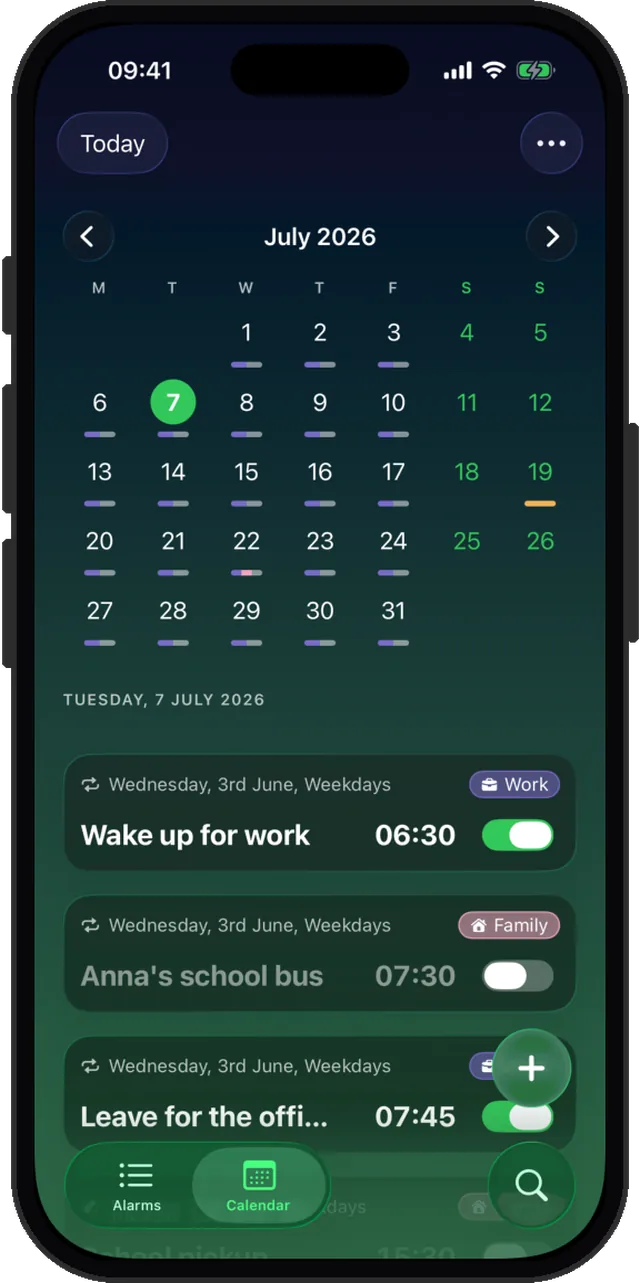
How to set one
- Tap the add button and set the time.
- Pick the starting date on the calendar. The repeat counts from there.
- Open Repeat and choose the pattern. For an interval, set the every-N value too.
- Optionally set an end date, then name it and save.
For the monthly and yearly specifics, including how short months are handled, see the monthly and yearly guide.
How to turn off a recurring alarm on iPhone
There are three different things people mean by this, and they have three different answers:
- Stop it permanently. Toggle the alarm off, or delete it. In the Clock app, deleting is the only way to be sure it never returns.
- Skip one occurrence. This is the common case, and the Clock app has no answer for it: your only option is to switch the alarm off and remember to switch it back on. Alarm Clock Planner has Skip next occurrence, which passes over a single date and leaves the schedule armed.
- Stop it after a certain date. Set an end date when you create it, and it retires itself.
The failure mode worth naming: turning a repeating alarm off for one day and never turning it back on. The day off is not the problem. The morning after is.
A note on hourly alarms
Alarms that repeat every hour, or every few minutes, are a common request and are not something we support. iOS alarm scheduling is built around daily and weekly patterns, and an interval that fine is better served by a timer. We would rather say so than ship something unreliable.
Set the rhythm once, stop rebuilding it
Monthly, yearly, every-other-week, with an end date. Free for up to 3 alarms.