iPhone Alarm Widget: Home Screen and Lock Screen
Half the value of an alarm app is the two-second check: is something armed for tomorrow, or not? A widget answers that without opening anything.
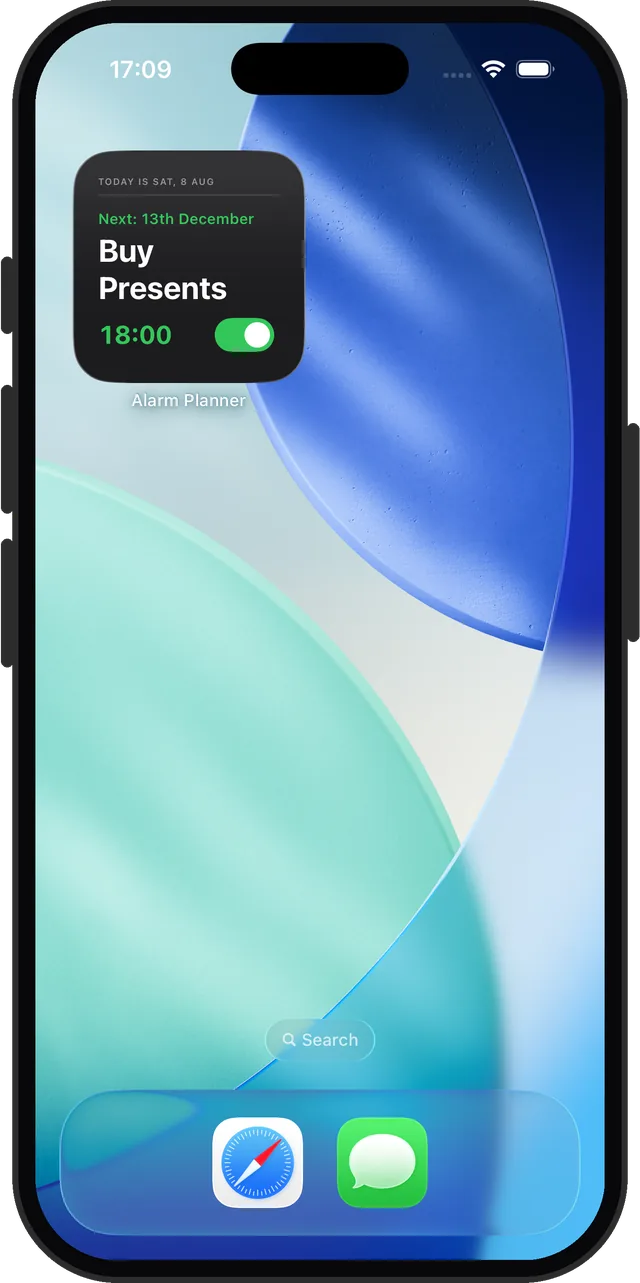
Quick answer: Yes. The built-in Clock app does not have an alarm widget, but Alarm Clock Planner ships one for both the Home Screen and the Lock Screen. Long-press the Home Screen or the Lock Screen, add the Alarm Planner widget, and your next alarm is visible without unlocking or opening anything. The Home Screen widget can toggle an alarm too.
Is there an alarm widget for iPhone?
Yes, but not from Apple. As of iOS 26 the built-in Clock app still ships no widget of any kind, so there is nothing to add from the stock alarm. That is why the search usually ends in disappointment: the widget gallery has Weather, Calendar, Reminders, and no alarm.
Third-party alarm apps can fill the gap, and Alarm Clock Planner does. It provides a small Home Screen widget and two Lock Screen widgets, circular and rectangular, all showing your next alarm.
The two-second check
The "did I actually set it?" doubt usually strikes after you are already in bed. Unlocking the phone, finding the app, and reading the list is a small task at the worst time, and it wakes you up more than it should. A glanceable widget exists to end exactly that ritual.
How to add the alarm widget to your Home Screen
- Press and hold an empty area of the Home Screen.
- Use the add or Edit Widget control and search for Alarm Planner.
- Pick the widget and drop it where you want it.
The Home Screen widget is interactive: the toggle on it arms or silences the alarm directly, no app launch needed.
How to add the alarm widget to your Lock Screen
- Press and hold the Lock Screen, then tap Customize.
- Choose the Lock Screen and tap the widget strip under the clock.
- Find Alarm Planner in the widget list and add the circular or rectangular widget.
- Tap Done. Your next alarm now sits on the Lock Screen, visible without unlocking.
What the widget shows
- Your next alarm, by name and time, straight from your alarm list.
- A countdown, which matters most for date-based alarms: an alarm three weeks out shows how many days remain, so you know it is armed without doing calendar math.
- Your theme: the widget follows the app theme you picked, so it looks like it belongs on your Home Screen.
Your next alarm, always one glance away
Home Screen and Lock Screen widgets included. Free for up to 3 alarms.