How to Set an Alarm for a Specific Date on iPhone
You need to wake up early on the 23rd. Not every Tuesday, just that one Tuesday. Here is why the Clock app makes that hard, and what actually works.
Quick answer: The built-in Clock app cannot attach a date to an alarm, only days of the week. For a date within the next 7 days you can use the day-of-week trick below. For anything further out, use a Shortcuts recipe or an alarm app built around dates, like Alarm Clock Planner, where you pick the day on a calendar and the alarm fires once on that date.
Why the Clock app cannot do this
An alarm in the iPhone Clock app is a time plus, optionally, days of the week. There is no date field anywhere. If you create an alarm for 05:30 with no repeat, it rings at the next 05:30, which is today or tomorrow, not the day you actually meant. People have been asking Apple for date-based alarms for years, and as of iOS 26 the Clock app still does not have them.
Workaround 1: the day-of-week trick (only within 7 days)
If your date is less than a week away, this works:
- Check which weekday your date falls on. Say the 23rd is a Tuesday.
- Create an alarm and set Repeat to that weekday, Every Tuesday.
- After it fires, delete it, or it will ring again every week.
The catch is the 7-day limit. If the date is 12 days away, the alarm fires on the wrong Tuesday first, a week early, usually at a time you very much did not want to be woken. And you have to remember the cleanup step at the exact moment you are least awake.
Workaround 2: a Shortcuts recipe
The Shortcuts app can create or toggle alarms, so with enough patience you can build an automation that checks the date and enables an alarm when the day arrives. It does work, but it is fiddly to set up, easy to misconfigure, invisible in your alarm list until it runs, and painful to edit later. It is a workaround in the truest sense.
Workaround 3: Calendar or Reminders alerts
Calendar events and Reminders can notify you on any date, but an alert is not an alarm. Notifications respect the Silent switch and your Focus settings, play at notification volume, and stop on their own. Fine for remembering a meeting mid-afternoon. Not something to trust with a 4:30 wake-up.
The direct way: pick the date on a calendar
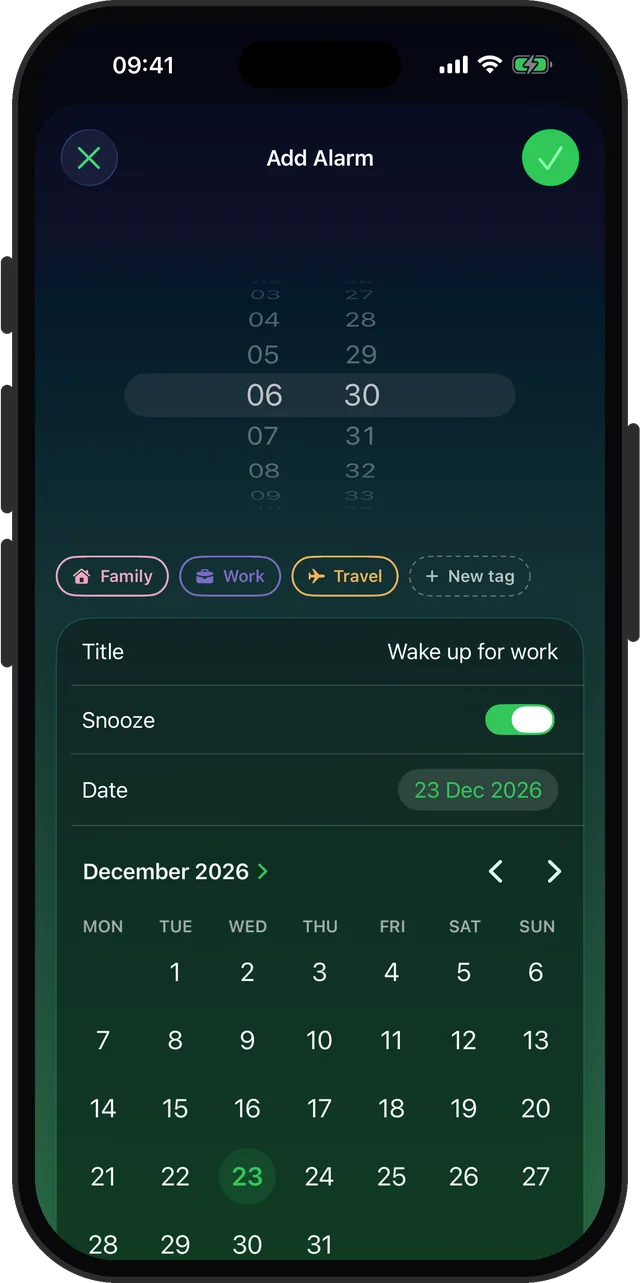
Alarm Clock Planner treats the date as a first-class part of the alarm:
- Tap the add button.
- Tap the date field and pick any day on the calendar. Next week, next month, or December of next year.
- Set the time, give it a name, pick a sound, and add a tag like Work or Travel if you want it grouped.
- Save. The alarm shows exactly when it will fire, waits for its day, and rings even if the phone is on Silent.
One-off alarms archive themselves after firing, so your list never fills up with expired leftovers.
Can an iPhone set an alarm for a future date?
Not with the built-in Clock app, no. This is worth stating plainly, because it is the assumption most people arrive with: an alarm there is a time, optionally attached to days of the week, and there is no date field to fill in. An alarm set for 05:30 always means the next 05:30, whether that is in four hours or twenty.
With an app that treats the date as part of the alarm, a future date is not a special case. Three weeks out, three months out, or next February all work the same way: pick the day on the calendar and the alarm waits. There is no upper limit that you are likely to hit, and no cleanup step afterwards.
Set your next alarm for the actual date
Free for up to 3 alarms. Rings on Silent. No account needed.