How to Change Snooze Time on iPhone
The 9-minute snooze ruled iPhones for nearly two decades. It is finally adjustable, within limits. Here is what the Clock app now allows, and how to go beyond it.
Quick answer: In iOS 26 the Clock app finally supports custom snooze duration per alarm, from 1 to 15 minutes. If you want more headroom or more discipline, Alarm Clock Planner goes up to 30 minutes and adds a snooze limit the Clock app has no equivalent for: cap how many times an alarm can be snoozed before snoozing stops being an option.
Changing snooze in the Clock app
Apple added custom snooze durations in iOS 26, ending the fixed 9 minutes:
- Open the Clock app and go to Alarms.
- Create an alarm or tap an existing one to edit it.
- Make sure Snooze is on, then tap Snooze Duration and pick 1 to 15 minutes.
Each alarm can have its own duration, which covers the basic case well.
Where the Clock app stops
Two things are still missing. The range tops out at 15 minutes, and there is no limit on how many times you can snooze: the loop is infinite, and everyone who has snoozed away a full hour knows exactly how that goes.
Snooze with a ceiling and a limit
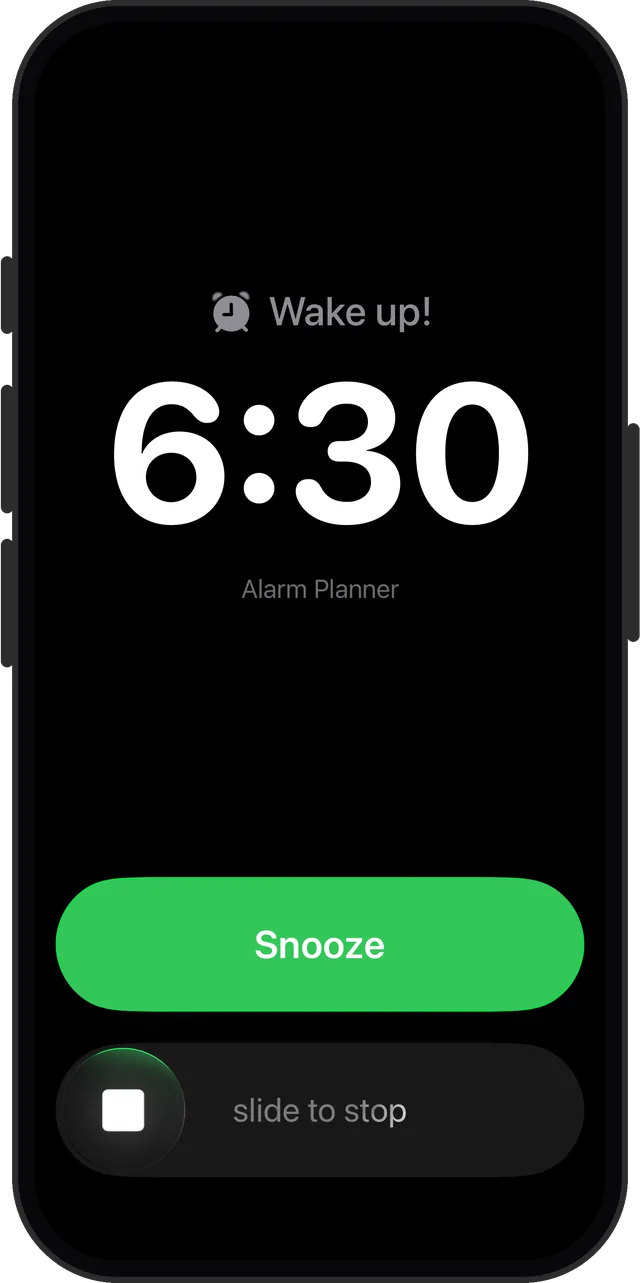
In Alarm Clock Planner, snooze has two dials the Clock app does not fully match:
- Duration, 1 to 30 minutes. Short and sharp, or a proper half-hour buffer before a soft deadline.
- Snooze limit. Cap the number of snoozes, say two. After the cap, snoozing is no longer offered, and the negotiation with yourself is over.
If you are snoozing to nap
Snooze is a bad nap tool: you are doing arithmetic with wake-up fog. A one-tap nap preset is the honest version: pick 20 minutes, close your eyes, done.
Snooze on your terms
1 to 30 minutes, with a limit that means it. Free for up to 3 alarms.