How to Set a Quick Nap Alarm on iPhone
It is 14:47, you have until 15:30, and the last thing your tired brain needs is arithmetic. A nap alarm should be one press and one tap.
Quick answer: In the Clock app a nap means creating or editing an alarm and doing the wake-up math yourself. In Alarm Clock Planner, press and hold the add button and tap a preset: 10, 15, 20, or 30 minutes, or nap until a set time. Naps are unlimited on the free tier.
The nap problem
Napping with the Clock app means opening it, working out what time it will be in 25 minutes, creating a one-off alarm, and remembering to delete it later so your alarm list does not slowly fill with orphaned 14:47s and 16:12s. It is a small amount of friction at the exact moment you have the least patience for friction.
One press, one tap
In Alarm Clock Planner the nap menu hides under the button you already use:
- Press and hold the add button.
- Tap a preset: 10, 15, 20, or 30 minutes, or the nap-until option showing a set time.
- Close your eyes. The alarm rings even if the phone is on Silent.
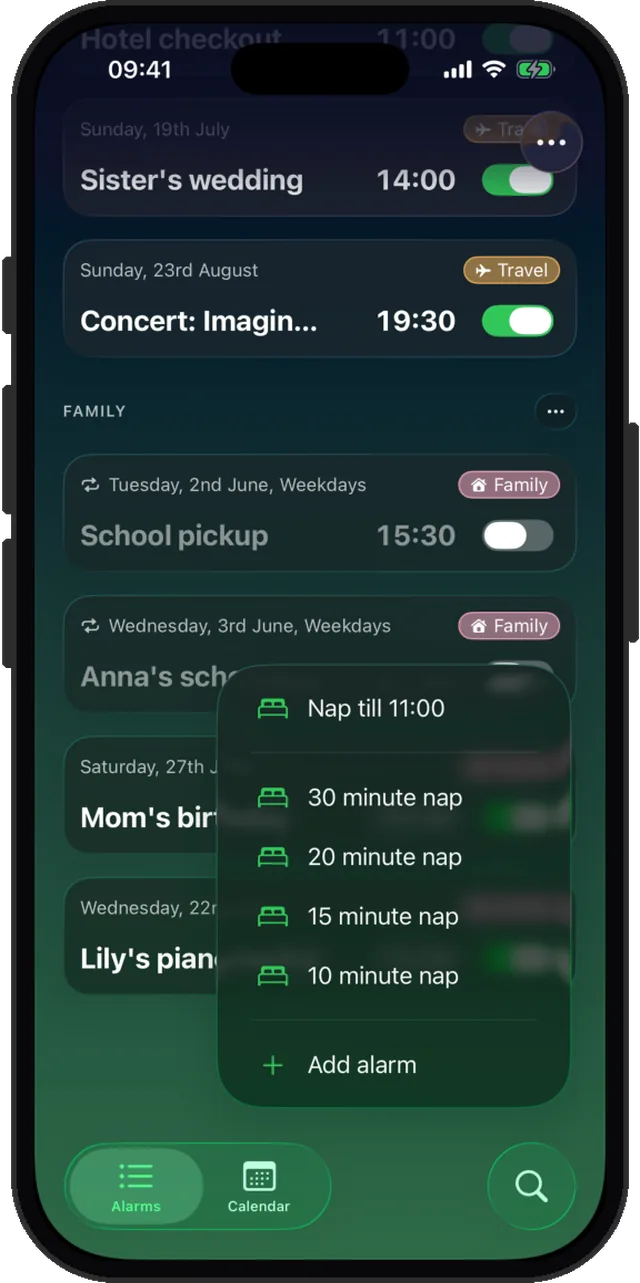
Naps do not clutter your alarm list
Naps live outside your scheduled alarms, so the 6:30 weekday wake-up and the flight alarm three weeks out stay untouched. And naps are unlimited on the free tier, alongside up to 3 concurrent regular alarms, so the app can be your daily nap tool without ever paying.
Nap versus snooze
Snoozing your way through an afternoon rest means waking up every few minutes to renegotiate. A nap alarm is a single decision: one ring at the end, with snooze settings you control if you want a soft landing.
Nap without the arithmetic
One press, one tap, unlimited naps on the free tier.