Calendar view of every alarm
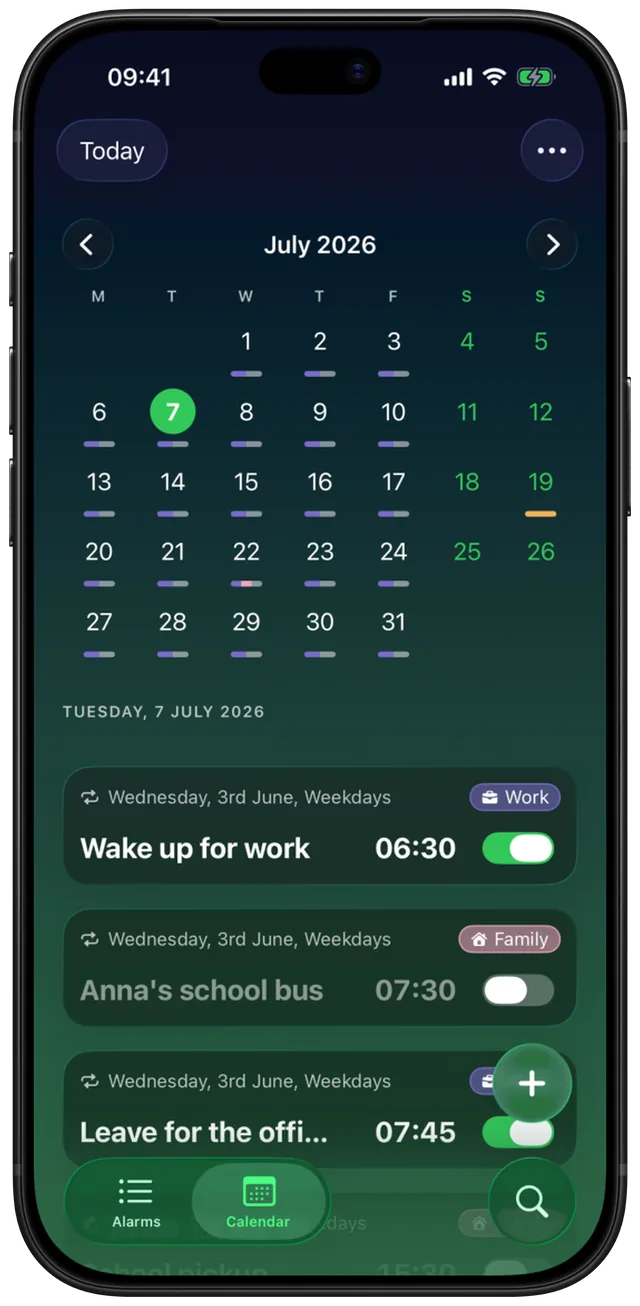
The Calendar tab lays every alarm out on a month grid. A coloured mark under each day shows what rings there, and one tap lists that day's alarms.
 Alarm Clock Planner is an iPhone appPoint your iPhone camera at the code to install it.
or text me the link
What it does
Alarm Clock Planner has a Calendar tab next to the Alarms list. It shows a month grid with a small coloured bar under every day that has an alarm, so you can see at a glance which mornings are covered and which are empty. Tap any day and its alarms appear below the grid, ready to edit, skip or delete.
The built-in Clock app keeps alarms as one list of times. Each alarm has a time plus Repeat, Label, Sound and Snooze, and that list is all you get. It works well for a few daily alarms. It does not tell you what rings next Thursday, whether a weekday alarm also covers a holiday, or which day of the month has nothing set. In Alarm Clock Planner every alarm has a date, so the app can place it on the days it really rings: a one-off on its single day, a repeating alarm on every day of its pattern, from its start date to its end date.
How it works
- Open the Calendar tab at the bottom of the screen. It opens on the current month with today selected, so today's alarms are already listed under the grid.
- Move between months with the arrow buttons beside the month name, or swipe left and right across the grid. Tap Today at the top left to jump back.
- Read the bars under the day numbers. Each colour is a tag, so a Work alarm and a Family alarm on the same day show as two colours side by side. Alarms without a tag use your theme colour. A grey part means an alarm on that day is switched off, which includes one-offs that have already rung.
- Tap a day. Its full date appears as a heading and every alarm that rings that day is listed as a card with its title, time, repeat pattern and tag. A day with nothing set says No alarms.
- Tap a card to open it in the editor. Swipe a card left and tap Delete to remove it.
- To add an alarm for the day you picked, tap +. The editor opens with that date filled in. Press and hold + for quick naps instead.
What the calendar shows
There are no settings to switch on. The calendar reads your alarms and draws them like this:
| On the grid | Meaning |
|---|---|
| Filled coloured bar | An alarm from that tag rings that day. |
| Outlined bar | An alarm from that tag is skipped on that day only. |
| Grey part at the end | At least one alarm on that day is switched off. One-offs that have already rung count as off. |
| Ring around a number | Today. |
| Filled circle | The day you selected. |
| Dimmed numbers | Days already behind you. You can still tap them to look back. |
| Accent-coloured numbers | Saturday and Sunday. |
The week starts on the day your region uses, so the first column is Monday in most of Europe and Sunday in the US. How each alarm lands on the grid depends on its repeat:
| Alarm type | Where it appears |
|---|---|
| One-off (date alarm) | Only on its date. |
| Every day, Weekdays, Weekends, Weekly, Custom days | On each matching day, from the start date on. |
| Every 2 weeks and other intervals | Only on the on-cadence weeks, counted from the start date. |
| Monthly, Yearly | On its day of the month or year. A 31st alarm shows on the last day of shorter months. |
| Repeat with an end date | Stops after the end date. |
On a repeating alarm that is switched on, the card for any day still ahead has a Skip this instance control, except on the final day of an alarm with an end date, where a skip would simply end the alarm. Tick it to silence that one day while the rest of the pattern keeps ringing; the bar for that day turns into an outline. Skipping is part of the paid unlock and shows a padlock until then. The guide to skipping an alarm once explains the general idea.
One-offs that have already rung stay on their day unless Expired alarms in Settings is set to Delete. Set it to Keep in Calendar and past one-offs leave the Alarms list but stay browsable here. Once a one-off has rung, the app switches it off, so on past days its part of the bar turns grey rather than keeping its tag colour.
When to use it
Checking a busy week before it starts
On Sunday evening, page through the coming days. Every day with a bar has something set, and a day without one is a day you will wake on your own. A missing bar before an early meeting is easy to spot and fix with + on that day.
Seeing where alarms pile up
When work, school runs and medication all live in one app, one day can end up with five alarms. Tap the day and the list shows every alarm with its time, so two alarms ten minutes apart are easy to see and merge. The app only warns you when two switched-on alarms share the same minute in the next two weeks; alarms a few minutes apart are left for you to spot here.
Holidays and days off
A weekday alarm still shows on a public holiday. Tap that day and tick Skip this instance, and the morning stays quiet while the alarm comes back the next workday.
Monthly and yearly alarms
Rent on the 1st, a filter change every 3 months, a renewal once a year. In a list these look alike; on the grid you can page ahead and see exactly which month each one lands in.
Looking back
Past days stay tappable. Check when a one-off rang or whether a repeating alarm covered last Tuesday. Skipping only works on days still ahead. You cannot add new alarms to a past day: the + button greys out and shakes.
Tags make the colours useful, so it helps to set them up first: see alarm groups with tags.
Limits
- Month view only. There is no week, year or agenda view. You page one month at a time.
- The grid shows colours, not times. To see what time an alarm rings, tap the day.
- Up to 4 colours per day. The bar under a day has room for 4 parts. If more tags ring that day, tap the day to see them all.
- Only same-minute clashes are flagged. If you save an alarm that rings in the same minute as another switched-on alarm within the next two weeks, the app warns you and offers the next minute. Alarms a few minutes apart are not flagged, and neither is a monthly or yearly clash further out; you spot those in the day list.
- It does not read the Calendar app. Events from Apple's Calendar are not shown, and alarms are not added to it. The calendar here only shows Alarm Clock Planner's own alarms.
- Repeating alarms do not show before their start date. A weekday alarm created to start on the 3rd appears from the 3rd on, not earlier in the month.
- No adding to past days. See Looking back.
- Some actions need the unlock. Browsing the calendar and editing alarms are free. Skip this instance needs the unlock, and so does adding an alarm while three are already set to ring.
Frequently asked questions
How do I see all my alarms on iPhone?
The Clock app shows them as one list of times on its Alarms tab. Alarm Clock Planner adds a Calendar tab that places each alarm on the days it actually rings, so you can see a whole month at once. Tap a day to list its alarms.
Is there an alarm calendar app for iPhone?
Alarm Clock Planner is built around one. Every alarm has a date, and the Calendar tab shows one-offs on their day and repeating alarms on every day of their pattern, coloured by tag. Browsing the calendar is free.
Can I add an alarm from a calendar on iPhone?
In Alarm Clock Planner, yes: tap a day on the Calendar tab, then tap +, and the editor opens with that date filled in. It does not work the other way round: events in Apple's Calendar app do not become alarms.
Does the alarm calendar show my Calendar app events?
No. It shows only alarms you set in Alarm Clock Planner. Your Calendar app events stay in the Calendar app, and the app does not read or change them.
Can I turn off an alarm for just one day from the calendar?
Yes, for repeating alarms that are switched on. Tap a day still ahead, then tick Skip this instance on the alarm's card (it is not offered on the last day of an alarm with an end date). Only that day is skipped and the bar on the grid turns into an outline. Skipping needs the unlock.
Sources
See your whole month of alarms
Get Alarm Clock Planner on the App StoreMore features
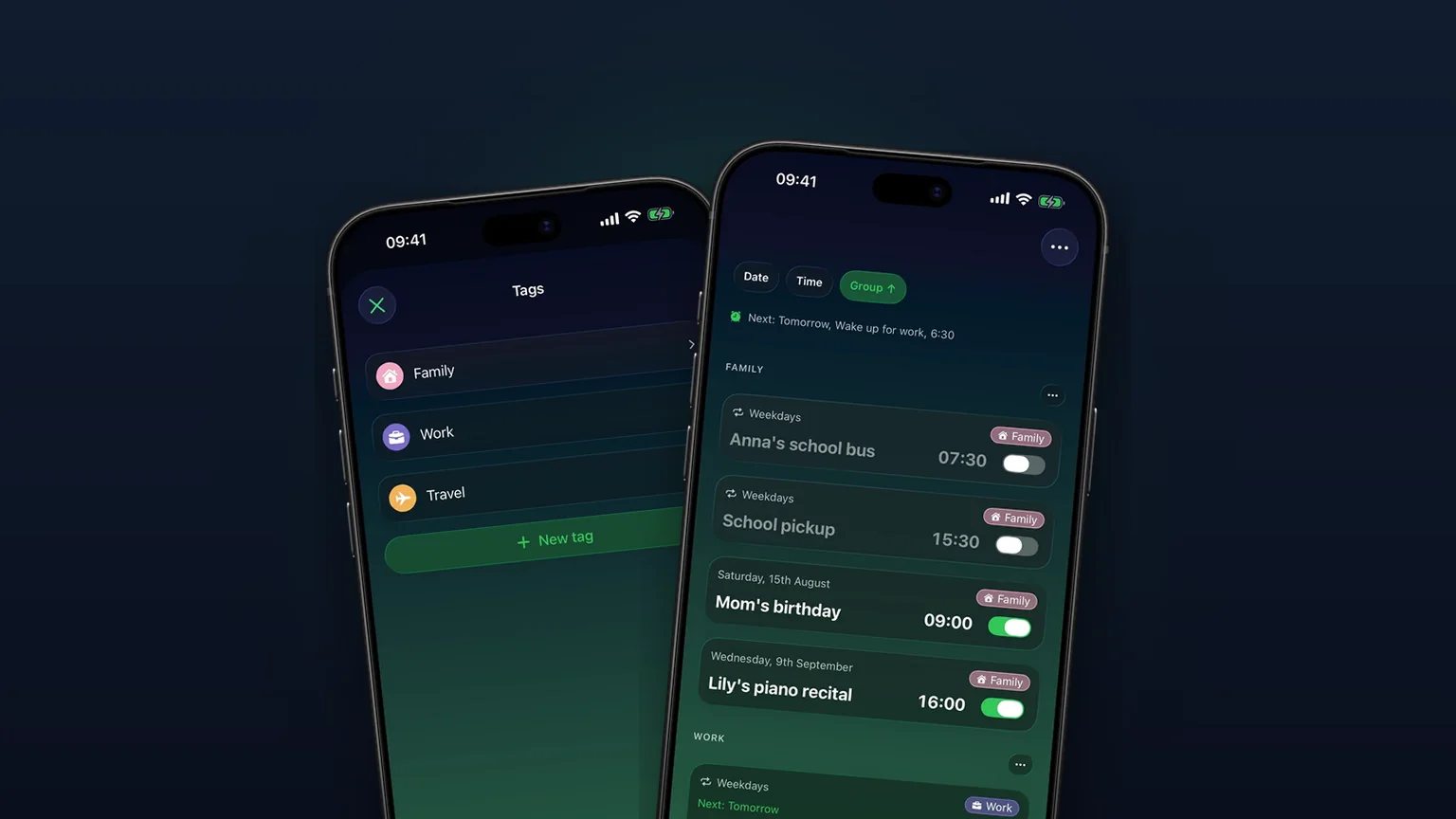
Alarm groups with color-coded tags
Color-coded groups like Work, Family or Travel, each with its own sound and snooze, plus switching and bulk edits for a whole group at once with unlimited access.
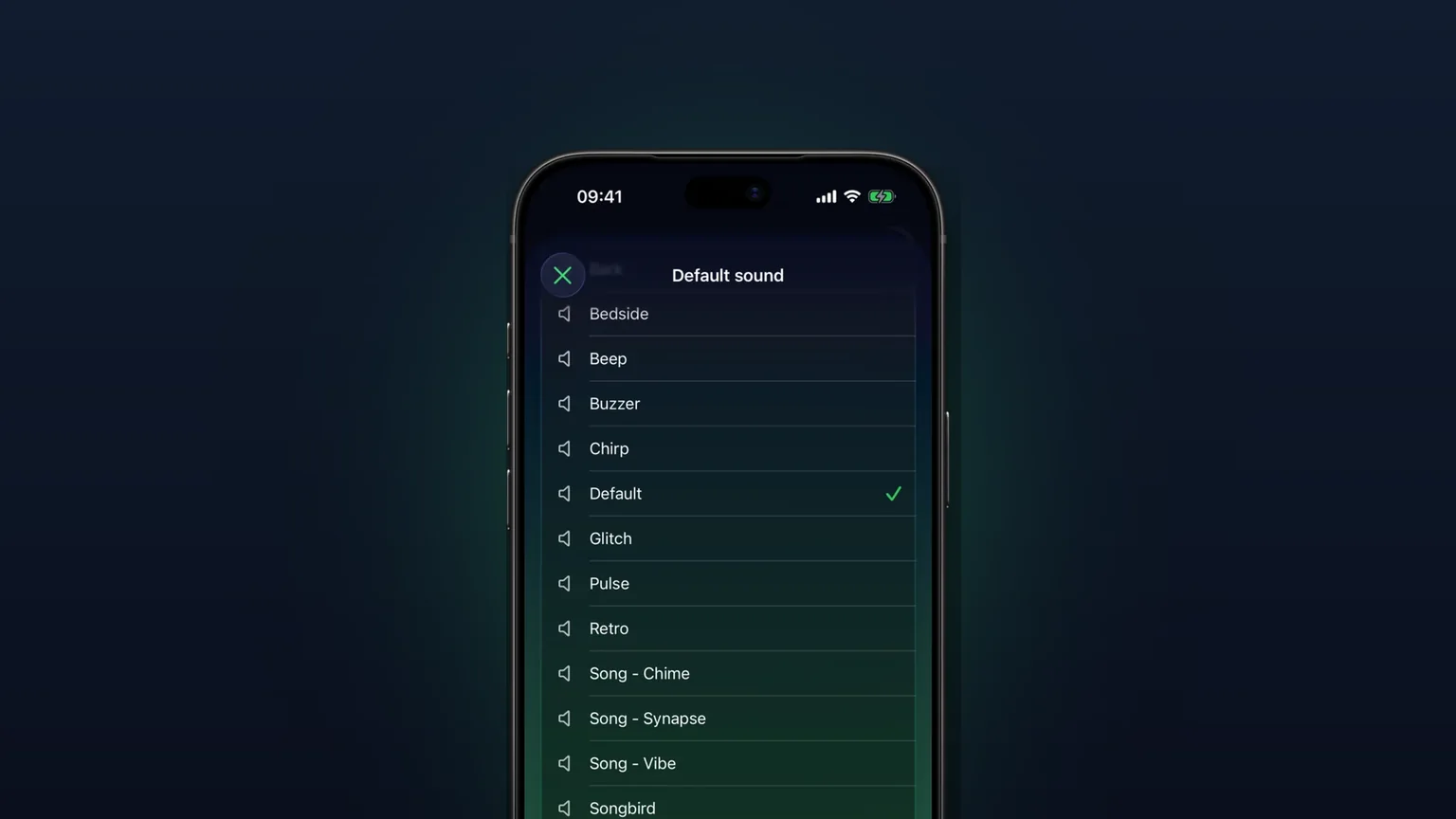
Your own alarm sounds, from any audio file
Import any audio file as an alarm sound, trimmed to 30 seconds, or pick one of 15 built-in tones, per alarm, per group or as your default.
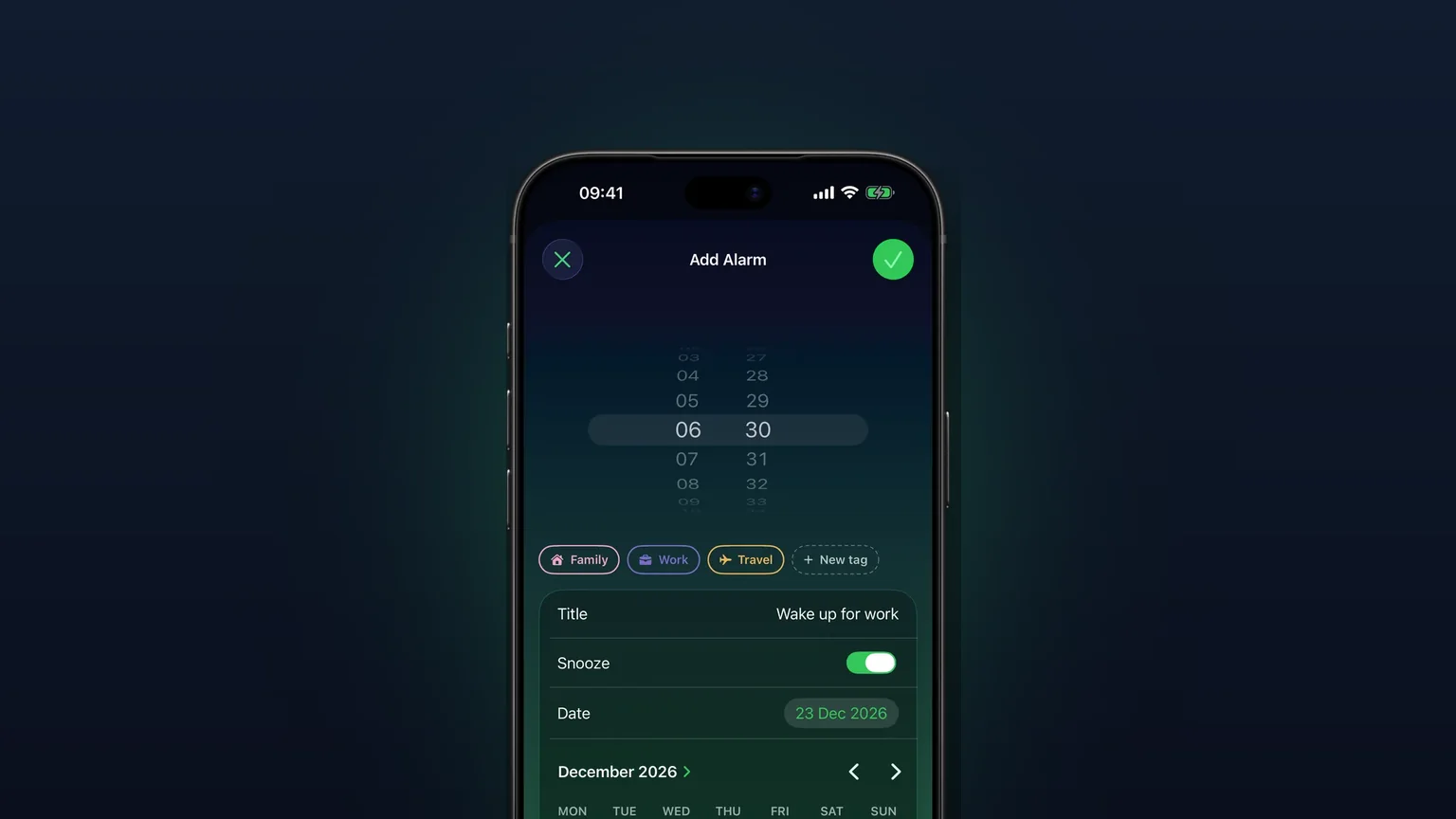
Alarms for any future date
Pick any future day on a calendar; a one-off alarm rings once on that date, then switches itself off.