Alarm widgets for the iPhone Home Screen and Lock Screen
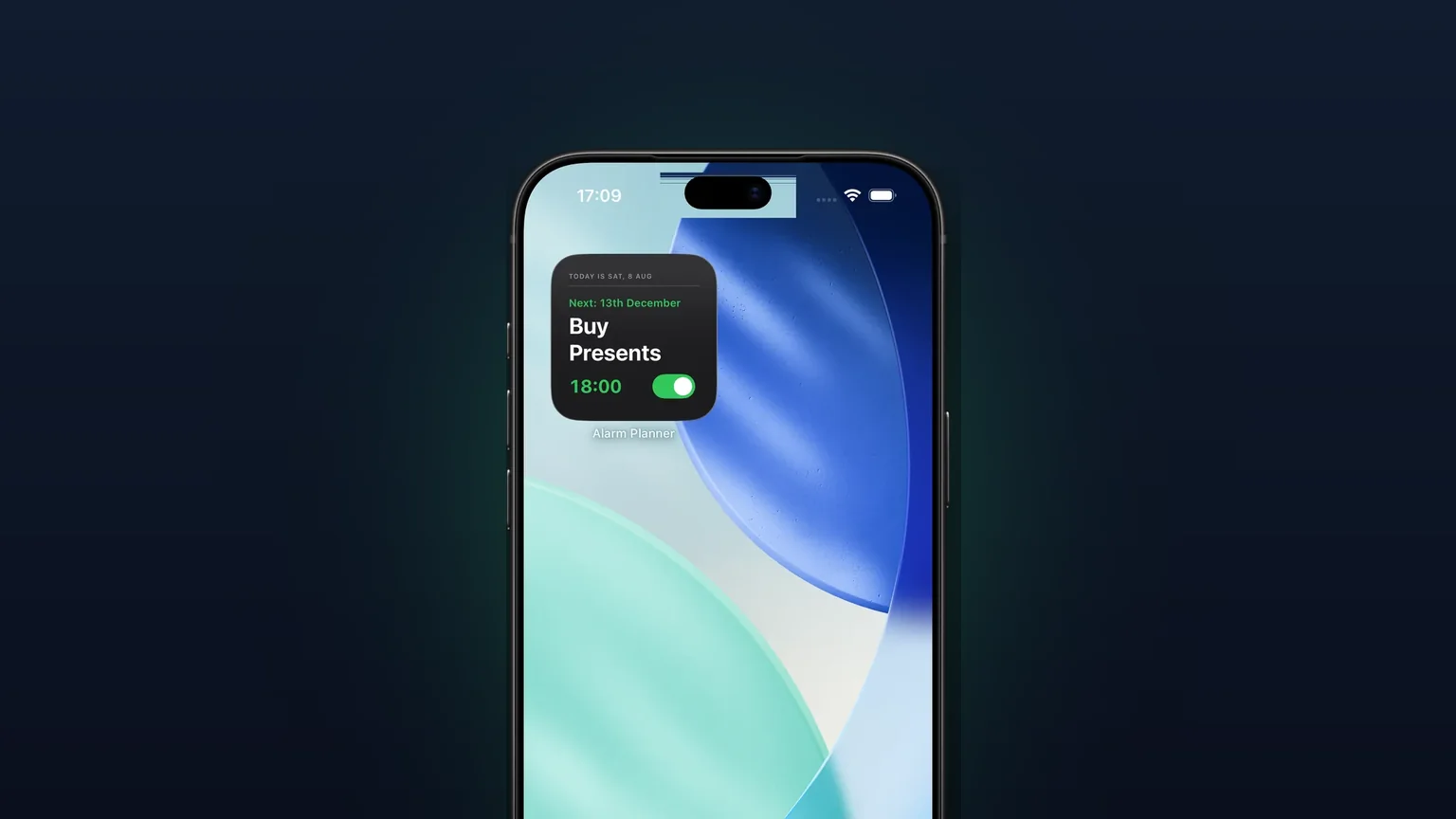
Alarm Clock Planner ships one widget called Next Alarm. It comes as a Home Screen tile and as two Lock Screen widgets, and all three show your soonest upcoming alarm.
 Alarm Clock Planner is an iPhone appPoint your iPhone camera at the code to install it.
or text me the link
What the widget does
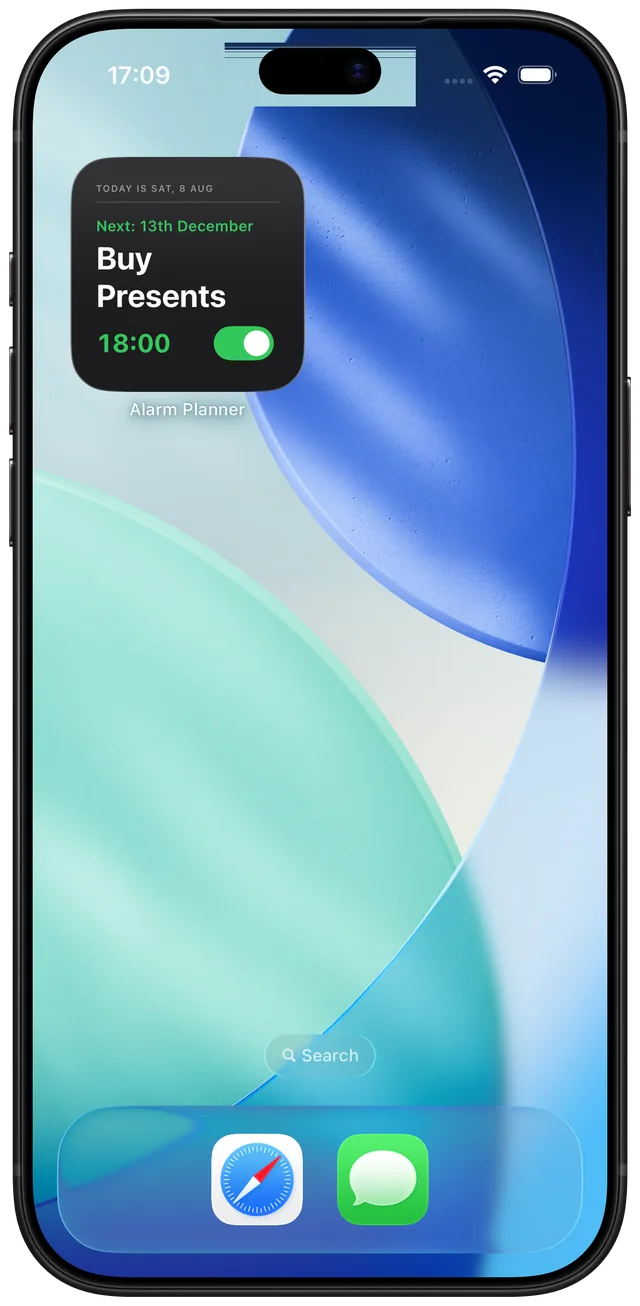
The Next Alarm widget shows the one alarm that rings next, taken from your whole alarm list. You see it without opening the app: on the Home Screen as a small tile, or on the Lock Screen as a circular or a wide widget. The Home Screen tile also has a toggle that turns that alarm on or off.
The widget matters most when your alarms are not all the same daily alarm. If your list holds an alarm for a date three weeks away, a weekday alarm and a skipped morning, you want to know which one is really next. The widget reads the same list as the app, so a skipped occurrence never shows up in it, and an alarm for a future date appears as soon as it becomes the soonest one. For the general iPhone side of widgets, see the guide to the iPhone alarm widget.
How it works
- Create your alarms in the app. The widget has no alarm list of its own and shows nothing until at least one upcoming alarm exists. With none, the Home Screen tile and the rectangular widget read No alarm scheduled and Tap to add, and the circular widget shows a crossed-out alarm icon.
- Add the widget named Next Alarm (the gallery lists it under Alarm Planner) to your Home Screen or Lock Screen. Apple describes the steps in its guides Add, edit, and remove widgets and Create a custom Lock Screen.
- Pick a size. The widget supports exactly three: the small Home Screen tile, the circular Lock Screen widget and the rectangular Lock Screen widget.
- Optional: open Settings in the app and set Next alarm shows to Date or Countdown, and decide whether Snooze/nap show in widget is on.
- Tap the widget at any time. It unlocks your phone if needed and opens the Alarms tab, never an editor.
The widget keeps working for a while when you do not open the app. The app hands it a list of up to 30 upcoming rings, and the widget moves to the next one by itself when an alarm fires. Once those 30 rings have passed (about ten days with three daily alarms), open the app once so it loads the next batch. The widget also refreshes at midnight, so the date line stays right.
Options and sizes
| Widget | What it shows | Interactive? |
|---|---|---|
| Home Screen, small | Today's date, "Next:" day, tag icon, repeat symbol, name, time, toggle | Yes, the toggle |
| Lock Screen, circular | Tag icon (or an alarm icon), time, ON or OFF | Tap opens the app |
| Lock Screen, rectangular | Weekday and date, repeat symbol, tag icon and name, alarm name, time, ON or OFF | Tap opens the app |
Two settings change what the widget says:
| Setting | Choices | Effect |
|---|---|---|
| Next alarm shows | Date (default), Countdown | Both say "Today" or "Tomorrow" when close. Further out, Date says "15th July" and Countdown says "In 5 days" or "In 2 months". The Home Screen tile uses it, and so do the Alarms tab header and the alarm card of a repeating alarm in the app. |
| Snooze/nap show in widget | Off (default), On | Off keeps a snooze or nap alarm out of the widget. On shows it, so you can confirm it was scheduled. |
The tile follows your app theme through its accent color, which paints the time, the toggle and the icons. The tile itself stays a dark surface. The tag on an alarm shows as its icon on the tile and as icon plus name on the rectangular widget. Tag colors appear on the tile.
When to use it
The check in bed
You are lying down and wonder whether tomorrow's alarm is set. A Lock Screen widget answers on a glance at the lock screen, with ON or OFF printed on it.
An alarm weeks away
You set a date alarm for a flight or an exam. Once it is your soonest alarm, the tile shows "Next: 13th December", or "In 5 days" in Countdown mode, so you see it is armed.
A morning you want off
Your weekday alarm should stay quiet for one holiday. Skip that occurrence in the app (Skip next on the alarm card, or the day in the calendar view; skipping is a premium feature) and the widget moves on to the next real ring. To silence the next alarm without opening the app, flip the Home Screen toggle.
Shift work and mixed alarms
With several alarms on different days, the widget always shows the soonest ring, not the first row of a list. The tag icon tells you which group it belongs to, such as Work or Travel.
Checking a nap or snooze
Turn on Snooze/nap show in widget for a few days if you want the widget to confirm a nap alarm. Turn it off again if the next alarm jumps around after each snooze.
Limits
- One alarm only. The widget shows the single soonest alarm, not a list. For every alarm at once, use the app or the calendar view.
- No size options. There is no medium or large Home Screen size, and the widget has no settings of its own. Display choices live in the app's Settings.
- The Lock Screen widgets are read only. Only the Home Screen tile has a toggle. Tapping a Lock Screen widget opens the Alarms tab.
- Turning an alarm on from the widget needs the app. Turning an alarm off from the widget cancels it at once. Turning it on only queues the change, and the alarm is scheduled again the next time you open Alarm Clock Planner. The tile shows it as on before that happens, so open the app afterwards.
- Day precision. A widget cannot tick, so it shows days and not hours and minutes. The Alarms tab header in the app shows the exact time left when the next alarm is under 24 hours away.
- It shows a disabled alarm too. A switched off alarm still appears, dimmed, so you can turn it back on. Archived alarms do not appear.
- Dark tile. The Home Screen tile stays dark in light mode and dark mode, and only the accent follows your theme.
If the widget looks stale, open the app once. Every alarm change in the app refreshes the widget. You can read more on the widget guide.
Frequently asked questions
Is there an alarm widget for iPhone?
Yes, Alarm Clock Planner includes one called Next Alarm. It comes as a small Home Screen widget and as a circular and a rectangular Lock Screen widget, all showing your next alarm.
How do I add the alarm widget to my Home Screen?
Add the Next Alarm widget from the widget gallery, where it is listed under Alarm Planner. Apple's guide Add, edit, and remove widgets covers the gallery steps. The guide on this site covers the iPhone side in more detail.
Why is my alarm widget not working or showing the wrong alarm?
The widget shows your soonest ring, so a skipped occurrence moves it on to the next one. A switched off alarm still shows, dimmed and marked OFF, so you can turn it back on. Snooze and nap alarms stay hidden unless you turn on Snooze/nap show in widget in Settings. Opening the app once refreshes the widget.
Can I turn an alarm on or off from the widget?
On the Home Screen tile, yes. Turning an alarm off cancels it immediately. Turning it on is saved and then finished in the app, so open Alarm Clock Planner afterwards to make sure the alarm is scheduled. The Lock Screen widgets have no toggle.
Can the widget show a countdown?
Yes, in day steps. Set Next alarm shows to Countdown in Settings and the tile says Today, Tomorrow, then for example In 5 days or In 2 months. It does not show hours and minutes, because a widget cannot tick.
How do I remove the alarm widget from my Home Screen?
Remove it like any other widget, as Apple describes in Add, edit, and remove widgets. Your alarms are not affected, since the widget only displays them.
Sources
Your next alarm, one glance away
Get Alarm Clock Planner on the App StoreMore features
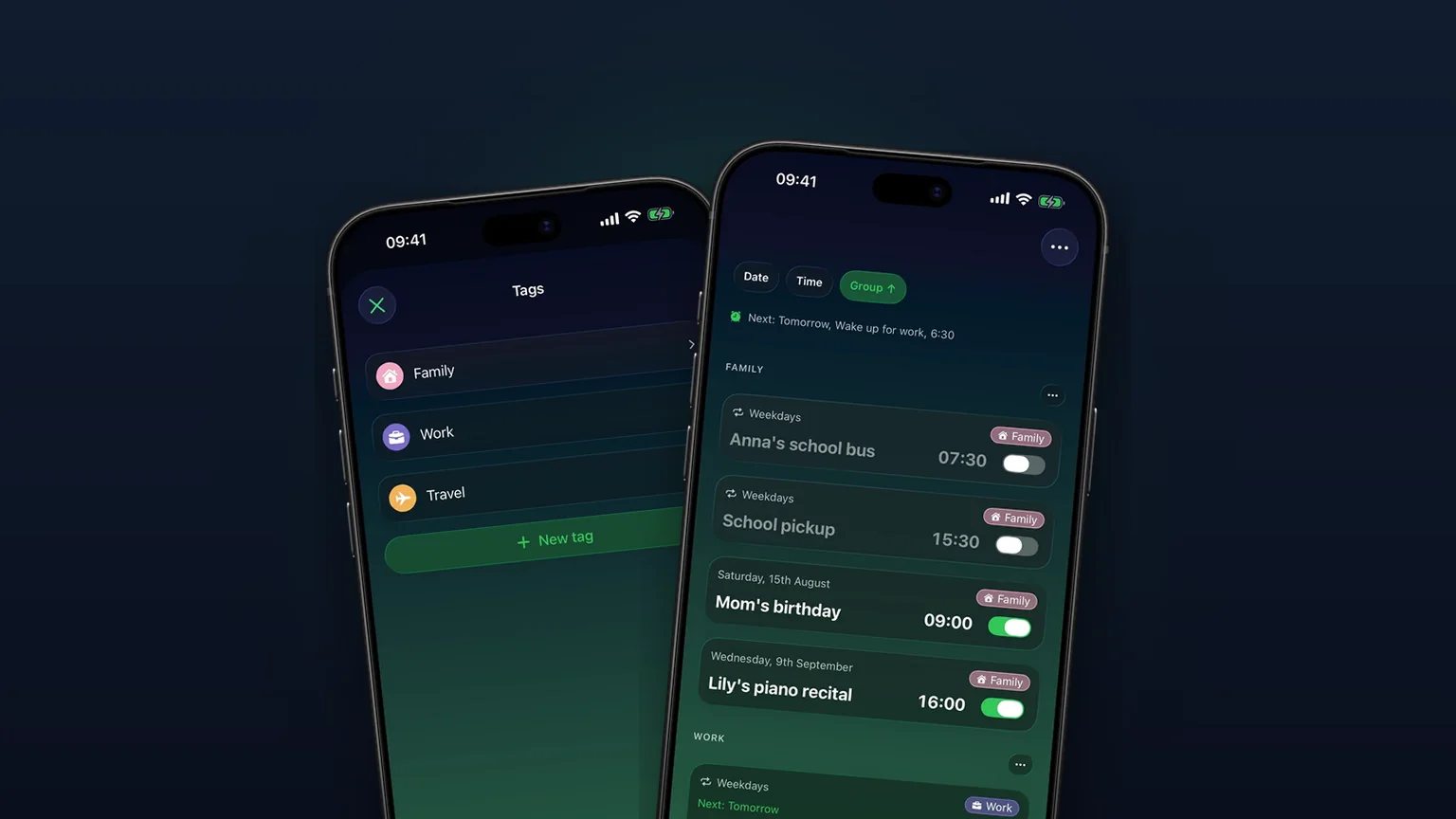
Alarm groups with color-coded tags
Color-coded groups like Work, Family or Travel, each with its own sound and snooze, plus switching and bulk edits for a whole group at once with unlimited access.
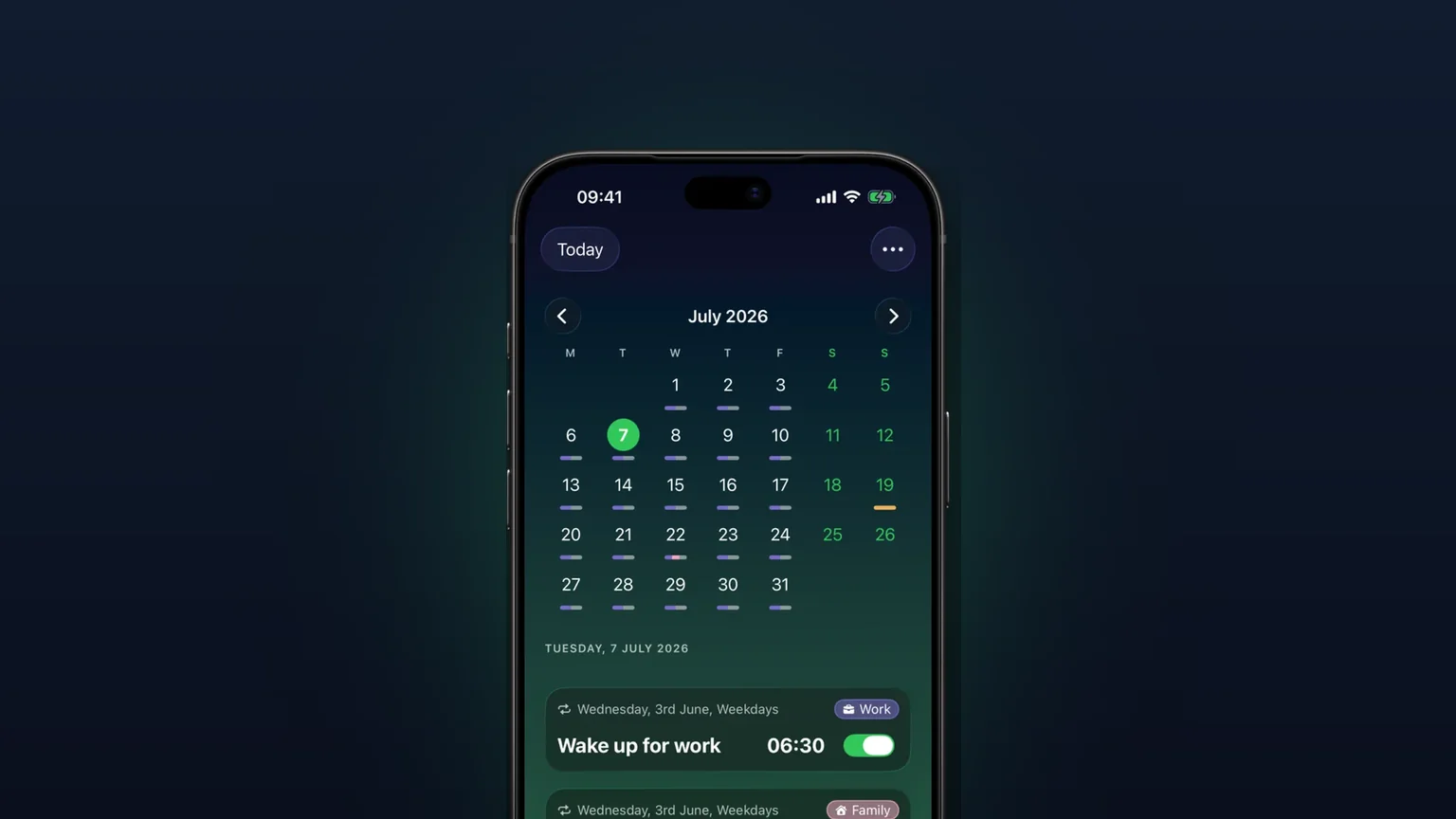
Calendar view of every alarm
Every alarm on a month grid, coloured by tag; tap a day to see, edit or skip what rings that day.
Your own alarm sounds, from any audio file
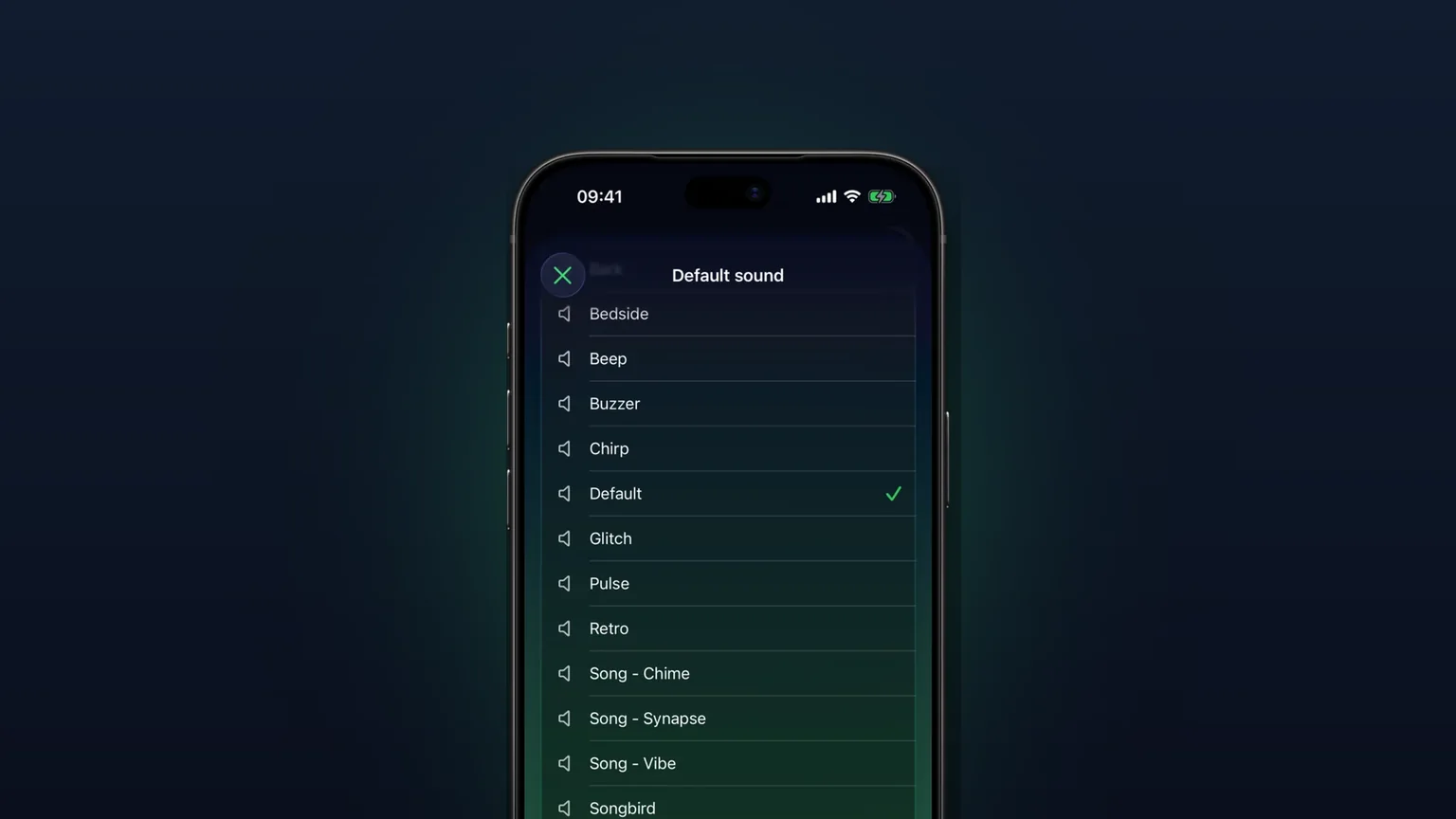
Import any audio file as an alarm sound, trimmed to 30 seconds, or pick one of 15 built-in tones, per alarm, per group or as your default.