Alarms for any future date
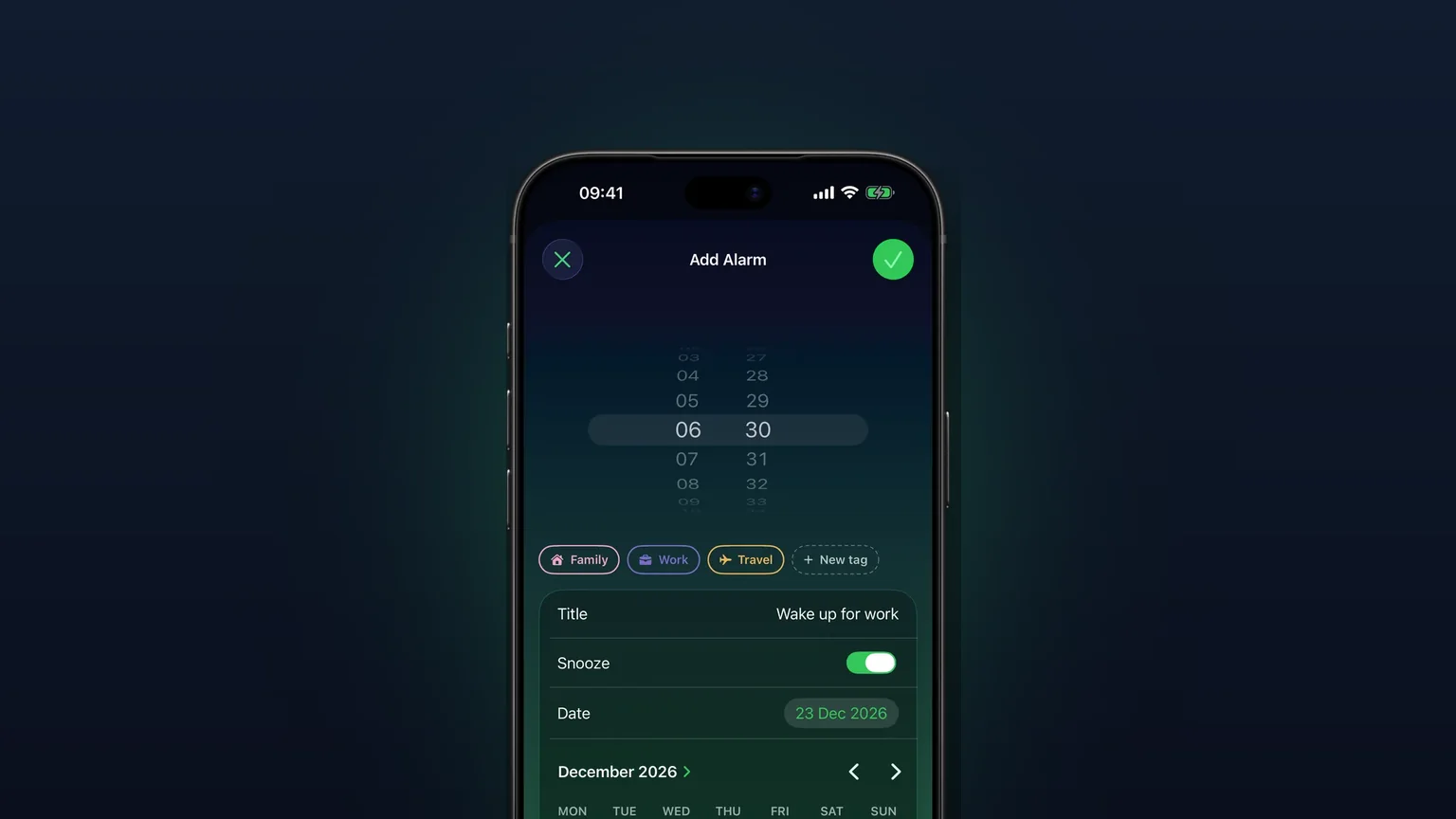
Pick the day on a calendar, set the time, and save. The alarm waits for that date, rings once, then switches itself off.
 Alarm Clock Planner is an iPhone appPoint your iPhone camera at the code to install it.
or text me the link
What it does
In Alarm Clock Planner every alarm has a date. Leave Repeat on Never and the alarm is a one-off: it rings on the exact day and time you picked, whether that is tomorrow or next spring, and then turns itself off.
The built-in Clock app is good at the everyday alarm. It rings through the Ring/Silent switch and Do Not Disturb, and its Repeat option handles recurring alarms. What it does not have is a date. Apple's own steps for a Clock alarm list a time plus Repeat, Label, Sound and Snooze, and nothing else, so a one-off alarm in Clock always means the next time that hour comes round. If you need to wake at 04:30 on the 14th of next month, Clock has no field for it. Alarm Clock Planner puts the calendar right inside the alarm, so the date is something you choose instead of something you work around. For the general iPhone workarounds, see how to set an alarm for a specific date on iPhone.
How it works
There are two ways in: from the add button, or straight from a day on the calendar.
From the add button
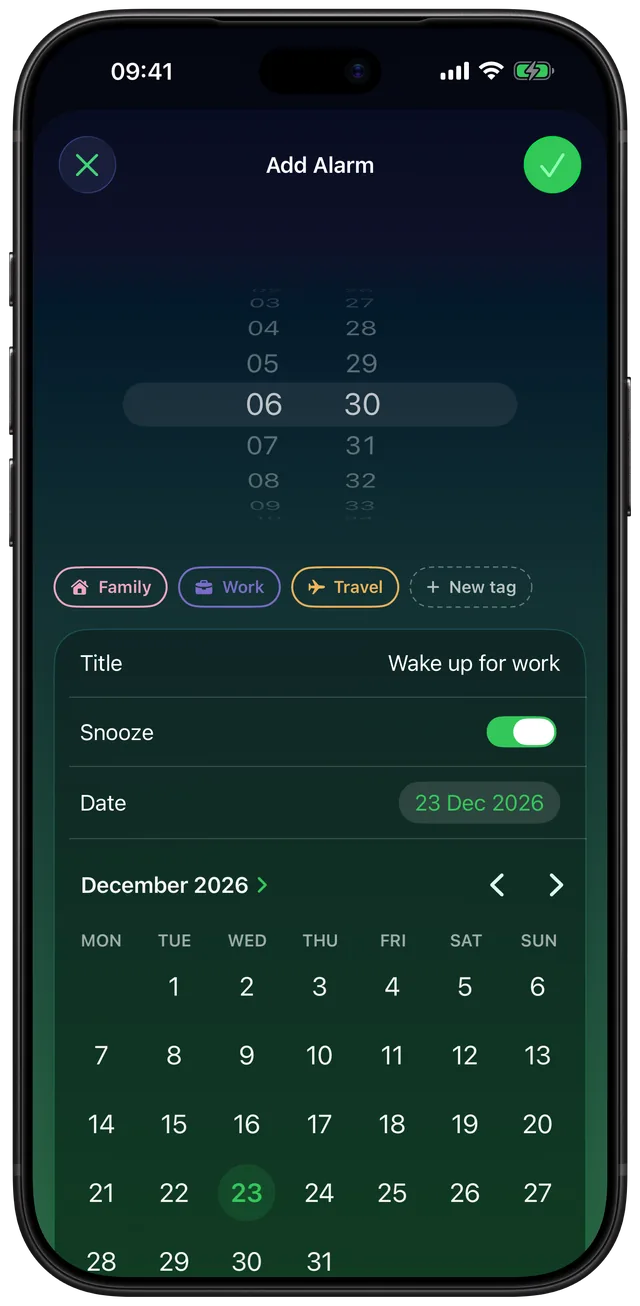
- Tap the + button. The Add Alarm screen opens.
- Turn the time wheel to the hour and minute you want.
- Tap the Date row. A month calendar unfolds below it.
- Page forward with the arrows and tap the day. Days before today cannot be picked.
- Optionally type a Title, choose a Sound, set Snooze on or off, and pick a tag.
- Leave Repeat on Never and tap the checkmark to save.
From the Calendar tab
- Open the Calendar tab and tap the day you want.
- Tap +. Add Alarm opens with that day already filled in.
- Set the time and save.
The alarm then sits in your list and on that day in the calendar view until it rings.
Options
A date alarm has the same settings as any other alarm in the app. These are the ones that matter for a one-off:
| Setting | What it does |
|---|---|
| Date | The day it rings. Any day from today on. The picker sets no upper limit. |
| Time | Hour and minute on the wheel. |
| Repeat: Never | Makes it a one-off. Pick any other repeat and the row changes from Date to Starts, so the same day becomes the first ring of a series. |
| Title | A name, like "Airport taxi". |
| Sound | Its own tone, or Default from the tag or Settings. See your own alarm sounds. |
| Snooze | On or off for this alarm. Length is set in Settings or on the tag, see custom snooze length. |
| Tag | Files it under a tag such as Work or Travel, or your own alarm group. Preset tags appear for the uses you pick at setup, and you can add your own. |
After it rings, the alarm stays in your list, switched off and struck through. Settings has an Expired alarms menu that decides what happens next:
| Expired alarms | After a one-off rings |
|---|---|
| Keep in Alarms (default) | Stays in the Alarms list, off. |
| Keep in Calendar | Leaves the Alarms list once a day has passed since it rang and you open the app, but still shows on its day in the Calendar. |
| Delete | Removed once a day has passed since it rang and you open the app. |
To use a past one-off again, open it, pick a new date and save. That is handy for something like a dentist check every few months that never lands on a fixed pattern.
When to use it
An early flight weeks away
Book the ticket, set the alarm for that morning on the same day, and forget about it. Give it a Travel tag so it stays out of the way of your work alarms. The flight alarm guide covers how early to set it.
A one-off shift or exam
A Saturday shift or an exam at 08:00 is a single day. A date alarm covers it without touching your weekday alarms, and it does not come back the week after.
Appointments that do not repeat on a pattern
A car service, a vaccination, a parcel window. Each one is a date, and each one gets its own alarm with a title that tells you why it is ringing.
Planning a trip day by day
Set the alarm for each morning of a trip in one sitting, one per date, and check them all in the Calendar tab before you leave.
Something that starts later
A new job that starts on the 3rd needs a weekday alarm from that day on, not from today. Pick the date, then set Repeat to Weekdays. The row reads Starts, and the alarm does not ring before that day. For longer patterns, see repeating alarms.
Limits
- No past dates. Days before today are greyed out in the date picker. On the Calendar tab, the + button greys out and shakes when a past day is selected. If the date and time you set are already behind you, Save is greyed out and the screen says "Heads up - the specified time is in the past".
- One date per alarm. A one-off rings on a single day. For several unrelated dates, make one alarm per date. For a pattern, use a repeat with Starts instead.
- Free for up to 3 alarms. Without a purchase you can keep 3 alarms with a date still ahead, switched on or off. Alarms that have already rung do not count, and naps and snoozes never count. More than 3 needs the unlock.
- 50 scheduled alarms at most. The app stops adding alarms when 50 are scheduled at once and asks you to delete some first.
- It needs alarm permission. The app schedules through Apple's AlarmKit, so it asks once for permission to set alarms. Without it, no alarm can be saved.
- It does not read your Calendar app. Events in Apple's Calendar do not turn into alarms. You pick the date in Alarm Clock Planner.
Want it to ring through Silent mode too? That is covered in alarms that ring on Silent and Focus.
Frequently asked questions
Can I set an alarm for a specific date on iPhone?
Not in the built-in Clock app, which has no date field, only a time and a Repeat option. In Alarm Clock Planner you tap the Date row, pick the day on a calendar and save. The alarm rings on that day only.
How far ahead can I set an alarm for a future date?
The date picker in Alarm Clock Planner sets no upper limit, so you can page forward months or into next year. The only rule is that the date and time must still be ahead of you when you save.
What happens to a one-off alarm after it rings?
It switches itself off and stays in your list, struck through. In Settings, Expired alarms lets you keep it there, move it to the Calendar only, or delete it once a day has passed since it rang. That move or delete happens the next time you open the app.
Can I set an alarm for a certain date and time that also repeats?
Yes. Pick the date, then change Repeat from Never to a pattern such as Weekdays or Monthly. The Date row becomes Starts, and the alarm never rings before that day.
Is setting an alarm for a future date free?
Yes, for up to 3 alarms with a date still ahead, even if one is switched off. Alarms that have already rung do not count toward that. Keeping more than 3 at once needs the unlock.
How do I set an alarm for a specific date on Android?
Alarm Clock Planner is an iPhone app, so this guide does not cover Android. On Android, check whether your phone's clock app offers a date option when you create an alarm.
Sources
Set your next alarm for the actual date
Get Alarm Clock Planner on the App StoreMore features
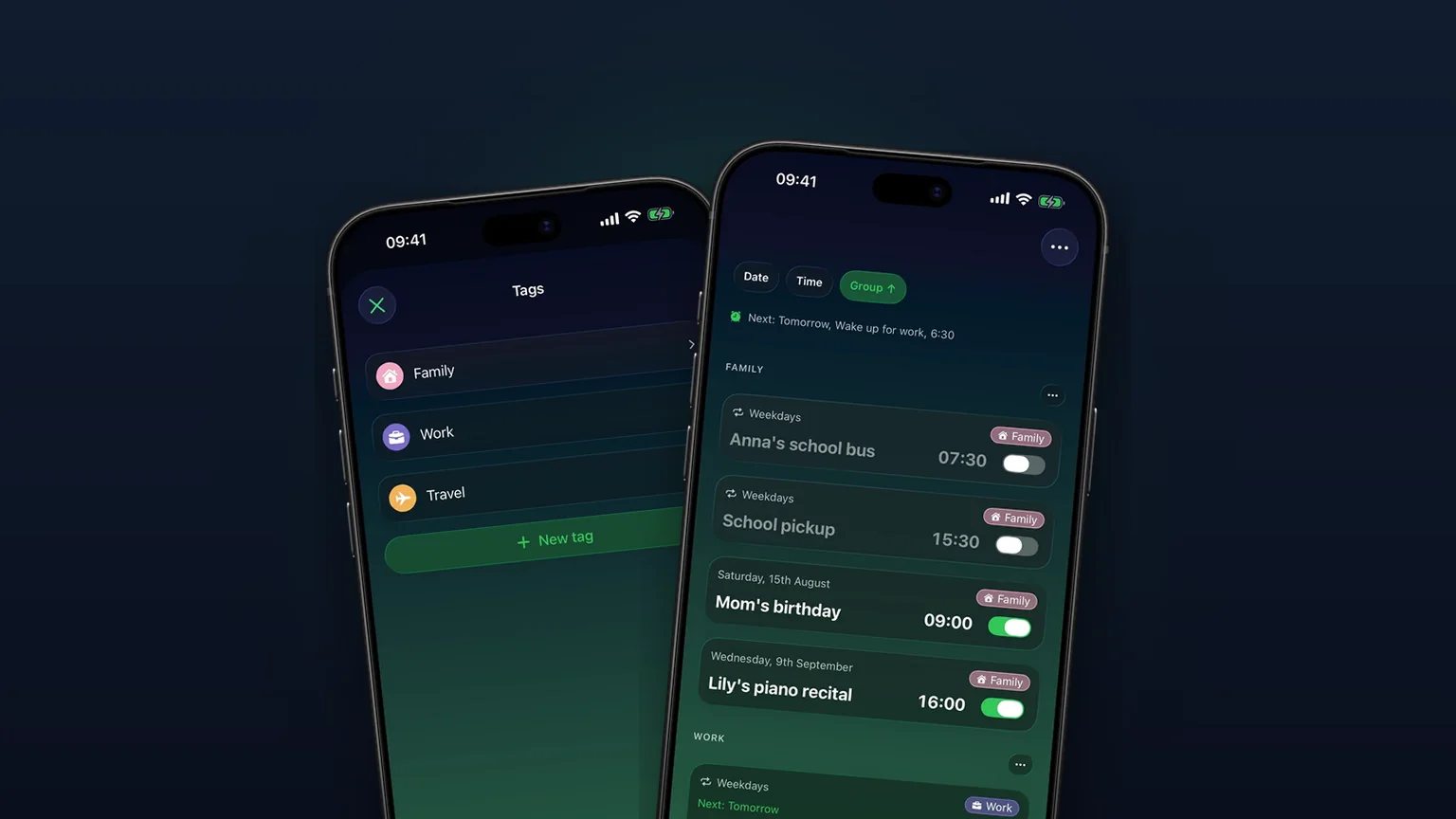
Alarm groups with color-coded tags
Color-coded groups like Work, Family or Travel, each with its own sound and snooze, plus switching and bulk edits for a whole group at once with unlimited access.
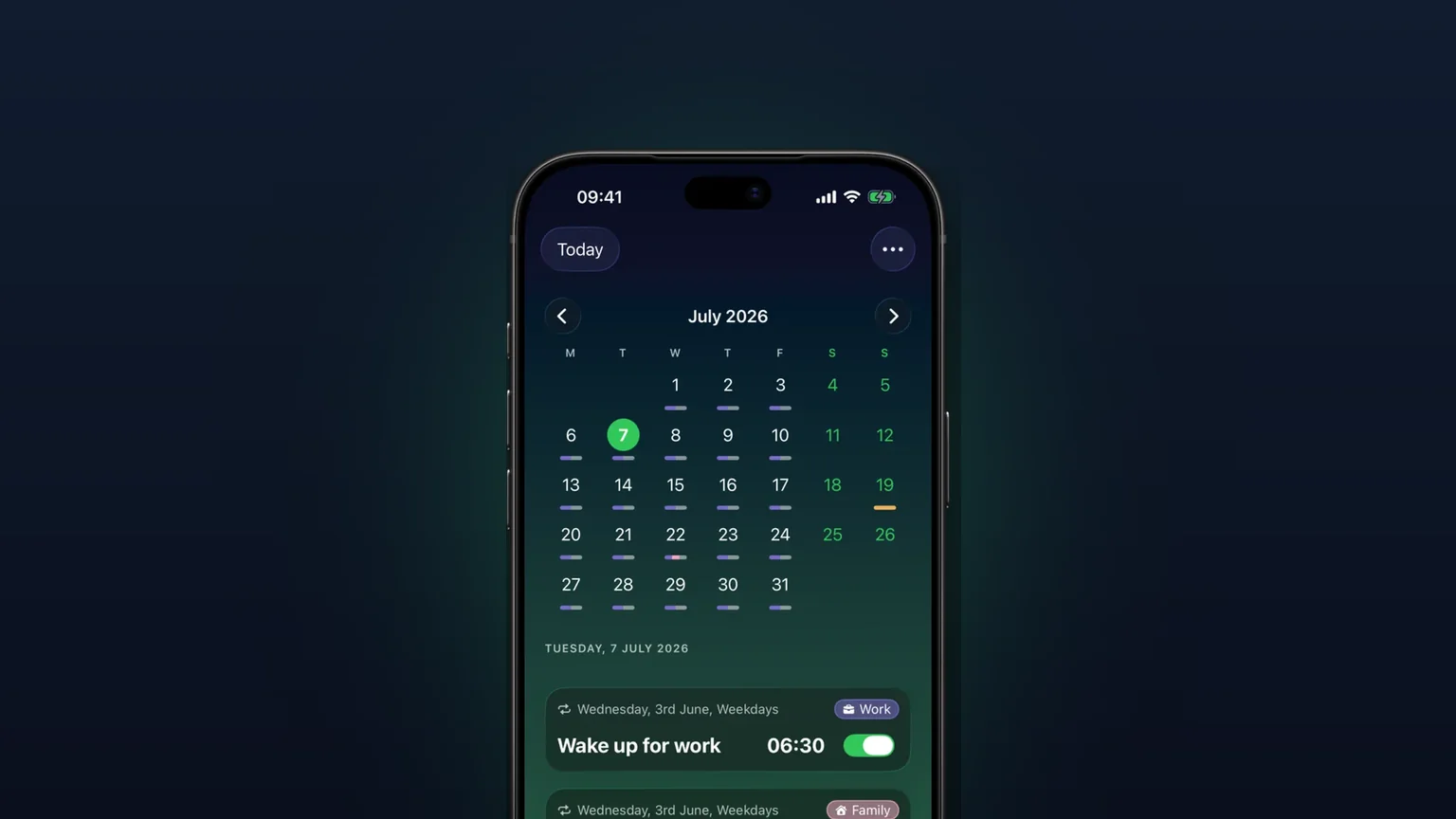
Calendar view of every alarm
Every alarm on a month grid, coloured by tag; tap a day to see, edit or skip what rings that day.
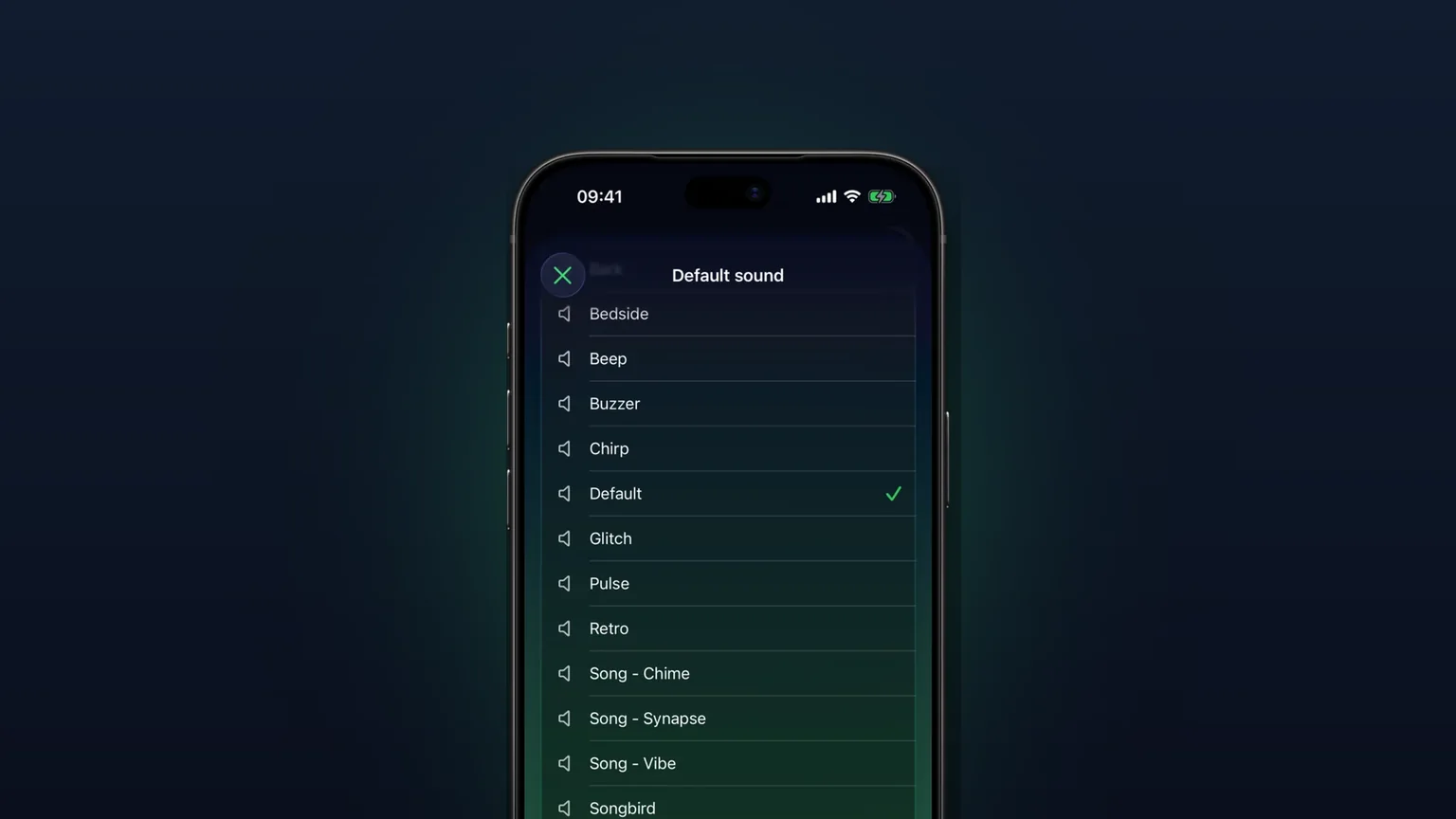
Your own alarm sounds, from any audio file
Import any audio file as an alarm sound, trimmed to 30 seconds, or pick one of 15 built-in tones, per alarm, per group or as your default.