iCloud backup of your alarms, sounds and settings
Alarm Clock Planner saves your alarms, tags, imported sounds and settings to your own iCloud in the background. On a new iPhone or after a reinstall, it finds the backup and offers to restore everything.
 Alarm Clock Planner is an iPhone appPoint your iPhone camera at the code to install it.
or text me the link
What iCloud backup does
Alarm Clock Planner keeps one backup file of your alarms, tags, imported sounds and settings in its own private iCloud container. When you install the app on an empty iPhone and sign in to the same Apple Account, it finds that file and asks if you want to restore it. Backup is on by default and does not need a purchase.
The built-in Clock app is fair on this point: it usually brings its alarms across when you restore a new iPhone from a full backup, since Apple's iCloud Backup covers data from Apple apps that do not sync with iCloud. That is a whole-phone restore, though. Clock has no backup of its own, so getting its alarms back means restoring the whole phone. Alarm Clock Planner's backup is tied to the app, so a fresh install of just this app can recover its own data.
How it works, step by step
Check that backup is on
- On the Alarms tab, tap the ... menu at the top right and choose Settings.
- Scroll to the iCloud Backup card. It sits below General.
- Look at the Back up to iCloud toggle. Under it the app shows "Last backup" with the date and time of the last save.
If you are not signed in to iCloud, the toggle reads off and the line under it says "Turn on iCloud in Settings to back up." Tapping the toggle then shows a "Turn on iCloud" alert that points you to iOS Settings. Turn iCloud on there, come back and flip the toggle.
Restore on a new iPhone or after a reinstall
- Install Alarm Clock Planner and open it. Use the same Apple Account that made the backup.
- If the app has no alarms yet and finds a backup, an alert asks Restore your alarms? It says: "We found an iCloud backup of your alarms from a previous install. Would you like to restore them?"
- Tap Restore. The app loads your alarms, tags, sounds and settings, then asks for alarm permission if you have not granted it yet. Allow it, because the restored alarms cannot ring without it.
Tap Start fresh instead and the app begins empty. The old backup stays in iCloud only until the app saves your new alarms over it, and there is no later restore button, so choose here.
What is saved, and the controls
| Item | Backed up? | Detail |
|---|---|---|
| Alarms | Yes | Title, date and time, repeat rule, notes, tag, sound, snooze setting, on or off, pre-reminder, time zone, archived alarms |
| Tags (groups) | Yes | Name, colour, icon, order, template time, sound, snooze length and limit |
| Imported sounds | Yes | The audio itself, so the sound still plays on the new phone |
| Settings | Yes | Default sound, snooze length and limit, accent colour, language, expired alarm action |
| Snooze and nap rows | No | They are short-lived, so the app skips them |
| Purchase status | Partly | Purchases come back through the App Store. The backup also keeps early-supporter status, and a restore can only add access, never remove it |
The Back up to iCloud toggle is the only control. Turning it on makes a backup straight away. While it is on, the app saves when it starts, at most once an hour. It skips the save when you have no alarms, so a fresh install cannot overwrite a good backup with an empty one. Turning the toggle off stops new saves but does not delete the file already in iCloud. Your custom sounds and alarm groups are part of the backup.
When it helps
You are buying a new iPhone
Sign in with your Apple Account, install the app and tap Restore. Your alarm list, tags and sounds are back in a minute, and you do not have to rebuild a month of date alarms by hand.
You deleted the app
Reinstalling to fix a problem or free space normally wipes the app's data. With backup on, the restore alert appears on the next first launch.
You rely on imported sounds
An alarm that plays your own recording is useless if the file is gone. The backup carries the audio, so the alarm keeps its sound.
You set alarms months ahead
A flight in March or a yearly reminder is exactly what you would hate to lose. A date alarm costs seconds to set and a lot more to remember. For setting those up, see our guide to date alarms.
Limits
- It is a backup, not live sync. Two iPhones do not mirror each other. The file is replaced each time, so the app keeps only the latest version, not a history.
- One restore path. The offer appears only on a first launch with no alarms. There is no restore button in Settings, so you cannot pull an older state back into a phone you already use.
- A restore replaces what is in the app. It clears the current alarms, tags and sounds before loading the backup.
- It needs iCloud. No iCloud sign-in means no automatic backup.
- It does not include Clock's alarms or Apple Watch alarms. It covers only this app.
Restored alarms still need the app's alarm permission to ring.
Frequently asked questions
Do alarms transfer to a new iPhone?
Clock alarms usually come across when you restore your new iPhone from a full backup, since Apple's iCloud Backup covers data from Apple apps that do not sync with iCloud. Alarm Clock Planner also backs up to its own iCloud container, so it can restore its alarms even if you only reinstall the app.
How do I back up alarms on iPhone?
In Alarm Clock Planner, open the ... menu on the Alarms tab, choose Settings and check that Back up to iCloud is on. It is on by default when you are signed in to iCloud, and it saves when the app starts, at most once an hour.
How do I restore alarms on iPhone after a reinstall?
Install the app, open it and sign in with the same Apple Account. If it finds a backup, an alert asks Restore your alarms? and you tap Restore. Allow alarm permission so the restored alarms can ring.
Can I get deleted alarms back?
Only if you deleted the whole app and have a backup. The restore offer appears on a first launch with no alarms. A single alarm you deleted yourself is not brought back, because the next automatic save replaces the backup and there is no restore button in Settings.
Does iCloud backup cost anything?
No purchase is needed for the backup toggle. The backup is a small file in your own iCloud, though it counts toward your iCloud storage like any other app data.
Sources
Keep your alarms safe
Get Alarm Clock Planner on the App StoreMore features
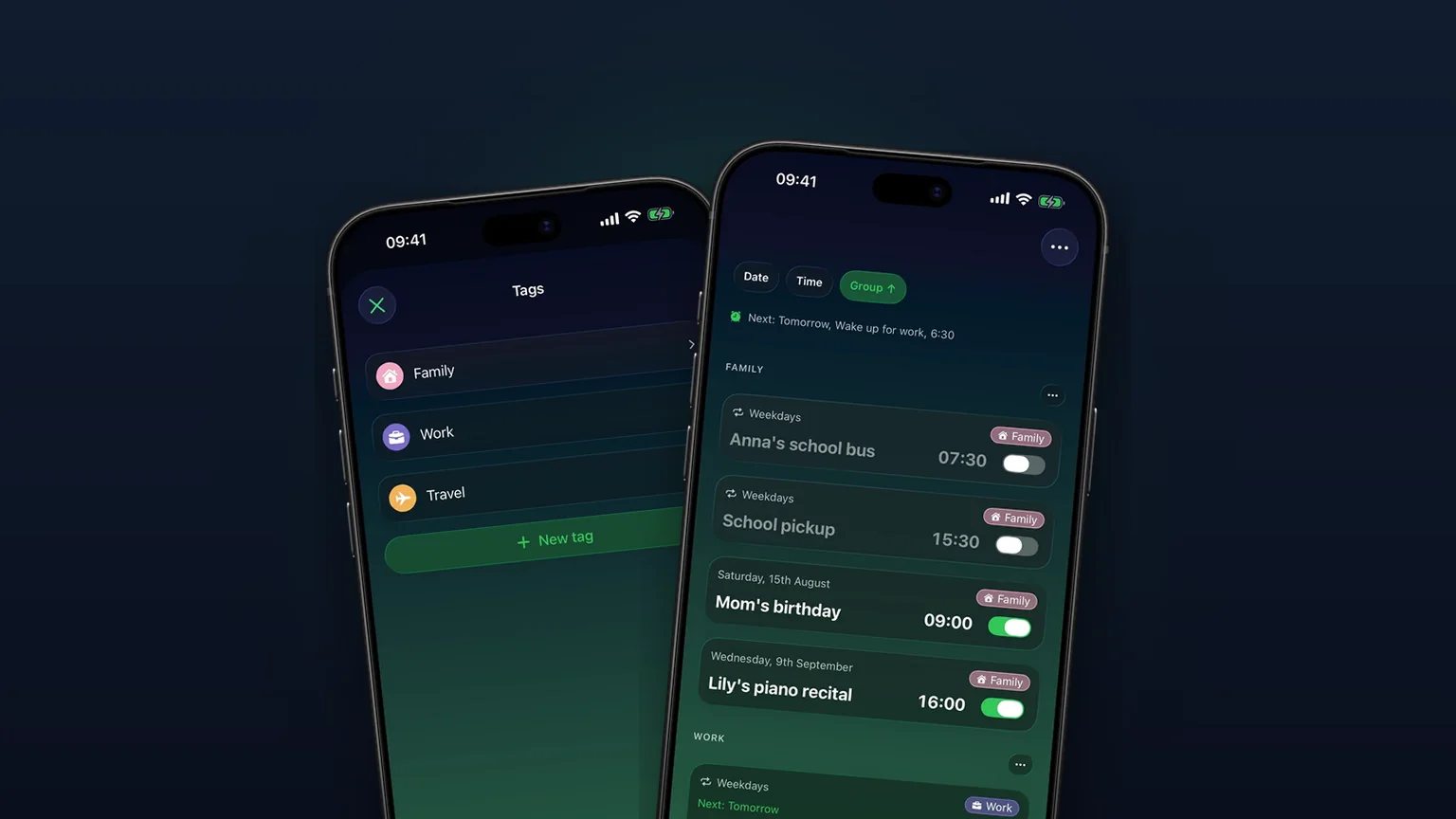
Alarm groups with color-coded tags
Color-coded groups like Work, Family or Travel, each with its own sound and snooze, plus switching and bulk edits for a whole group at once with unlimited access.
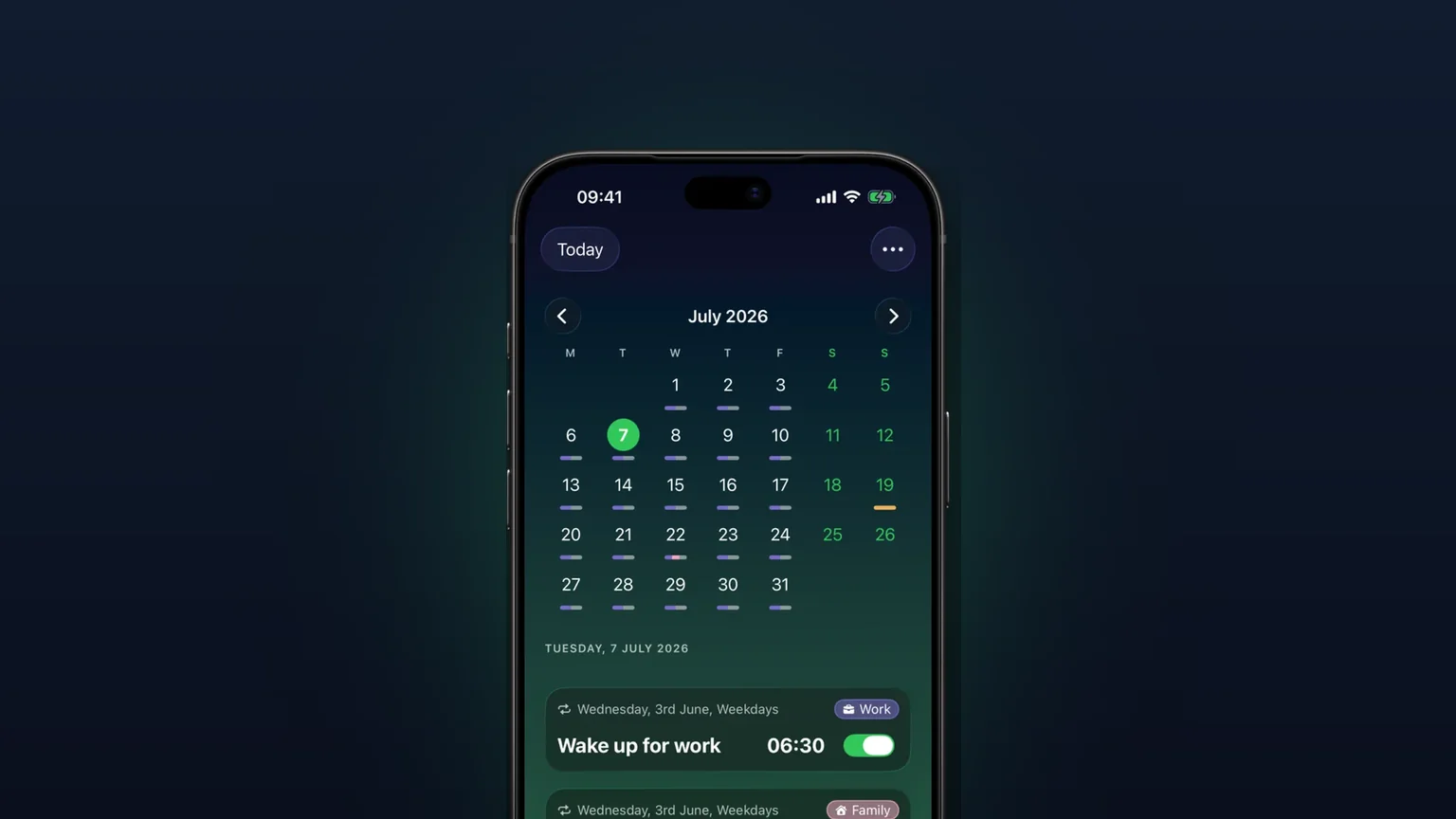
Calendar view of every alarm
Every alarm on a month grid, coloured by tag; tap a day to see, edit or skip what rings that day.
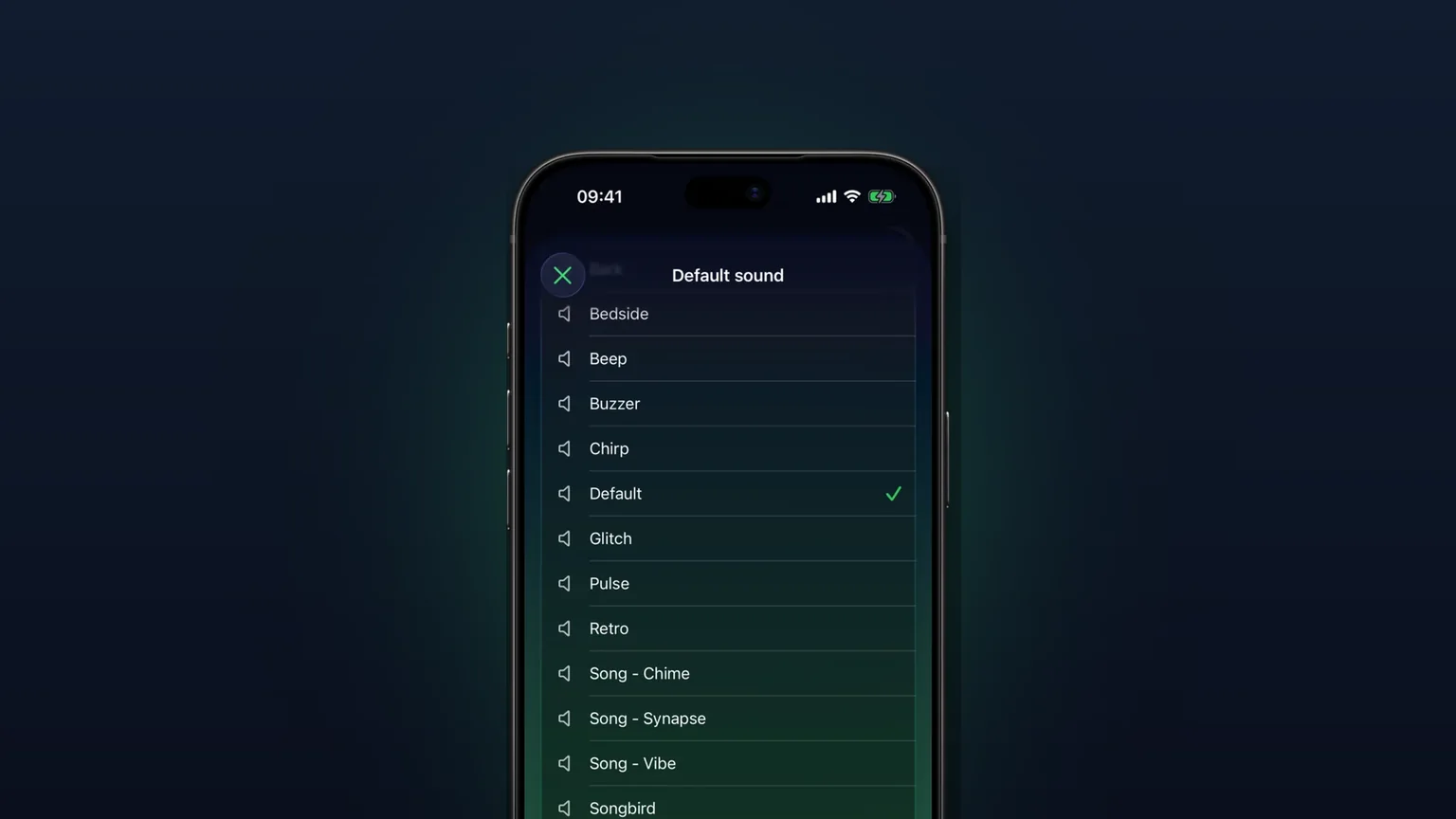
Your own alarm sounds, from any audio file
Import any audio file as an alarm sound, trimmed to 30 seconds, or pick one of 15 built-in tones, per alarm, per group or as your default.